Table of Contents
- Why learn AI tools now?
- Quick reference: curated tools for beginners
- Category 1: Conversational AI & brainstorming assistants
- Category 2: Writing & tone tools
- Category 3: Image generation & design
- Category 4: Audio & video (editing, transcription, and creation)
- Category 5: Productivity & knowledge workflows
- How I scored the beginner chart
- Data & adoption: what the big surveys say
- Safety, privacy & fair use
- Final notes
Why learn AI tools now?
Generative AI tools are widely adopted to accelerate writing, design, transcription, and ideation, with McKinsey research showing rapid growth in use across global business functions. (McKinsey & Company)
That said, many people still find the ecosystem confusing: different tools focus on different jobs (conversation, images, writing, audio, automation), pricing varies, and safety/ethical considerations matter. The good news for beginners: many excellent tools now include free tiers, simple UIs, and on-ramp guides which makes this a great moment to experiment.
Quick reference: curated tools for beginners
● ChatGPT: conversational assistant and prompt playground. (OpenAI)
● Canva AI: simple, template-first graphic & image generation. (Canva)
● DALL·E (OpenAI): text→image generation for clear-cut prompts. (OpenAI)
● Midjourney: creative art-style image generation. (Midjourney)
● Notion AI: writing, notes, and knowledge work inside Notion. (Notion)
● Grammarly (now evolving into broader productivity tooling): polished writing and tone suggestions. (Grammarly)
● Descript: audio/video editing with text-first workflow.
● Otter.ai: automatic transcription and meeting notes.
● Synthesia: AI video creation using avatars. (Synthesia)
● Stable Diffusion / Stability AI: open-source image models and GUIs.
Category 1: Conversational AI & brainstorming assistants
Why use them: fast answers, brainstorming, drafting, coding help, and step-by-step learning. The best place to begin is a chat assistant where you can experiment with prompts.
Top pick for beginners: ChatGPT (OpenAI)
What it does: a conversational AI that helps you draft emails, plan projects, learn concepts, and generate creative ideas. ChatGPT offers structured prompts and templates that make it very approachable for first-timers.
15-minute starter exercise:
1. Open ChatGPT (link below).
2. Ask it to “help me write a friendly 150-word email requesting a quote from a local photographer, including where I live, my budget (110.80 USD), and desired dates.”
3. Tweak the tone (“more formal” or “more casual”) and watch how small prompt changes produce big improvements.
Official link: ChatGPT: https://chat.openai.com/.

Tips for beginners
● Be specific and iterative: short prompts → refine → add constraints.
● Save or copy useful prompts (your “prompt library”) so you reuse what works.
Category 2: Writing & tone tools
Why use them: better grammar, clearer tone, faster drafts, and accessible editing suggestions.
Top picks
● Grammarly / Superhuman: grammar, clarity, and tone edits built into the browser and document editors. Great for polishing emails, essays, and posts.
● Notion AI: helpful inside your notes and workspace for summarization, idea expansion, and simple drafting. If you use Notion, activating Notion AI creates an integrated, low-friction experience.
15-minute starter exercise:
1. Paste a short draft of a blog post or email into Grammarly and review the suggestions.
2. Use Notion AI to summarize a long meeting note into three action items.
Official links:
Grammarly: https://www.grammarly.com/.
Notion AI: https://www.notion.com/product/ai.
Practical note: These tools don’t replace your judgment. Use them as a second set of eyes for clarity and correctness.
Category 3: Image generation & design
Why use them: create visuals quickly for social posts, thumbnails, concept art, or to spark creativity.
Beginner-friendly choices
● Canva AI: template-driven design + text-to-image features; extremely beginner-friendly because you start with a layout and customize.
● DALL·E 3 (OpenAI): produces accurate images from text prompts; paired with conversational editing in ChatGPT, it’s easy to refine results.
● Midjourney: more art-centric and tuned to stylized outputs (slightly higher learning curve but powerful).
15-minute starter exercise (Canva):
1. Open Canva and choose “Instagram post” or “presentation slide.”
2. Use the Magic Design / AI image generator to create an illustration from a simple prompt like “sunset city skyline, soft pastel, minimal.”
3. Adjust the layout and export.
Official links:
Canva AI: https://www.canva.com/ai-assistant/.
DALL·E 3: https://openai.com/dall-e-3/.
Midjourney: https://www.midjourney.com/.
Ethics & image use
Be mindful of copyright and do not generate images that impersonate or misrepresent real people without consent. When used responsibly, these tools accelerate ideation and reduce design friction.
Category 4: Audio & video (editing, transcription, and creation)
Why use them: turn meetings into searchable notes, edit podcasts by editing text, or create quick training videos without a film crew.
Useful beginner tools
● Descript: powerful because you edit audio/video by editing the transcript (text-first media editing). This removes the intimidating timeline editor for many beginners.
● Otter.ai: automatic meeting transcription and searchable notes; huge time saver for students and teams.
● Synthesia: create short AI-avatar videos (useful for simple explainers or multilingual narration).
15-minute starter exercise (Descript + Otter):
1. Record a 2-minute voice memo on your phone and upload it to Descript (or Otter).
2. Let the tool transcribe and then try removing filler words or reordering sentences. Descript will edit the audio for you.
Official links:
Descript: https://www.descript.com/
Otter.ai: https://otter.ai/
Synthesia: https://www.synthesia.io/.


Category 5: Productivity & knowledge workflows
Why use them: integrate AI into daily workflows, meeting summaries, to-do lists, and research digestion.
Top choices
● Notion AI: summarization, brainstorming, and automations inside your notes. Use it to speed up research and to turn long notes into action items.
● Zapier / n8n with AI connectors: when you’re ready to automate, these make it possible to connect AI outputs to other apps (e.g., summarizing a new email and saving bullet points to Notion). (Search their docs for beginner automation templates.)
Starter exercise (Notion AI):
1. Paste a long article into Notion.
2. Ask Notion AI: “Summarize this into three key takeaways and five action items.”
Official Notion AI link: https://www.notion.com/product/ai.
How I scored the beginner chart
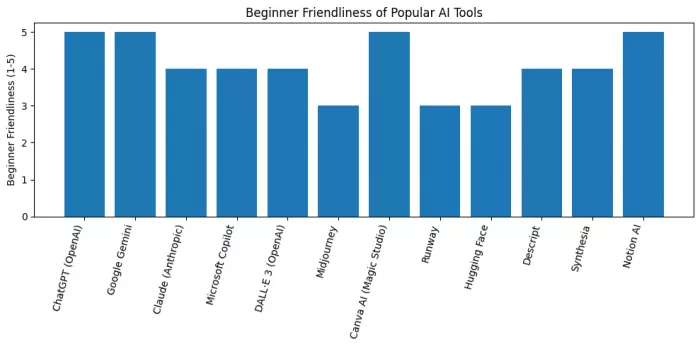
You saw the chart above that shows “beginner-friendliness” scores for the set of tools. These scores are curated and meant to be practical: they combine (a) availability of free tiers or easy trials, (b) simplicity of the interface for first-time users, and (c) common beginner use cases (writing, images, meetings). The chart is an actionable summary kindly try two or three tools in different categories to learn fastest.
Data & adoption: what the big surveys say
A few important facts to anchor expectations:
● Generative AI adoption increased markedly across organizations during 2023–2024, and many respondents reported that gen-AI was driving practical use cases like summarization, creative drafting, and coding assistance. (See McKinsey’s state-of-AI research for summary statistics and trends.)
● Lists of widely recommended tools for content, video, and productivity appear across many recent roundups, for example, Synthesia’s “best AI tools” roundup highlights dozens of tools beginners often try first.
These findings suggest a two-track approach for beginners: (1) quickly adopt one tool to get immediate gains (e.g., ChatGPT for drafting, Canva for visuals), and (2) learn one deeper tool that matches your work (e.g., Descript for podcasting).
Safety, privacy & fair use
1. Don’t paste sensitive personal data into any AI tool unless you understand the privacy policy.
2. Check usage rights before publishing AI images or transcripts (some tools’ terms grant limited commercial use). Official product pages and policies are linked above read the short “usage” or “copyright” section.
3. Attribution and transparency: When using AI to create content (images, text, or code), consider noting it in your content policy or workflow for ethical transparency.
Final notes
Start small, be curious, and treat the first few tools as learning environments. The most useful skill is not memorizing features, it's learning how to ask AI good questions and how to combine small outputs into meaningful work (a draft + a design + a voice-over = a shareable explainer). Use the table and chart above to prioritize what to try first, then follow the 30-day plan to build confidence.
Comments