AI image editing has quietly moved from being a “nice extra” to the core of modern photo workflows in 2026. Whether you are a photographer, designer, marketer, or content creator, AI tools now handle everything from background removal and skin retouching to generative fill and one‑click style matching. The result is faster turnarounds, more consistent visuals, and the ability to produce complex composites without needing years of Photoshop experience.
Here we will walk through six of the best AI tools for image editing right now, covering their key features, real strengths, deal‑breaking limitations, and up‑to‑date pricing so you can pick the right tool for their workflow.
1. Adobe Photoshop (Generative Fill & Firefly)
Adobe Photoshop remains the benchmark for professional image editing, and its Firefly‑powered AI features like Generative Fill, Generative Expand, and Text to Image are now tightly integrated into Creative Cloud plans. For many teams, Photoshop is where pixel‑perfect control meets production‑ready AI automation.
Key AI Features
● Generative Fill and Generative Expand for adding, removing, or extending content based on text prompts.
● AI object selection, background removal, and neural filters for portrait retouching and color grading.
● Integration with Firefly for text‑to‑image and style transfers inside the Adobe ecosystem.
Main Strengths
Photoshop’s biggest strength is the depth of its layer‑based editing combined with high‑quality AI assistance. Power users can mix traditional tools (masks, adjustment layers, blend modes) with AI fills to build complex composites far faster than with manual workflows. It also fits naturally into Creative Cloud workflows for designers working across Illustrator, Lightroom, and Premiere Pro.
Major Disadvantages
The two main drawbacks are cost and complexity. Adobe has moved to a generative‑credits model, so heavy use of Generative Fill and related AI may require higher‑tier plans or extra credit purchases, which can add up for high‑volume users. On top of that, beginners can find Photoshop’s interface intimidating compared to simpler AI‑first tools.
Adobe Photoshop / Firefly Pricing (Creative Cloud)
| Plan type | What you get (AI‑related) | Approx. pricing* |
| Creative Cloud Pro | All desktop apps + higher Firefly generative credits/month | Around $69.99/month after recent increase. |
| Standard Creative Cloud | All desktop apps, ~25 generative credits/month for AI fill | Typically cheaper than Pro tier. |
| Firefly Creative AI plans | Dedicated generative credits bundles for heavy AI usage | Tiered, up to tens of thousands of credits/month. |
2. Luminar Neo
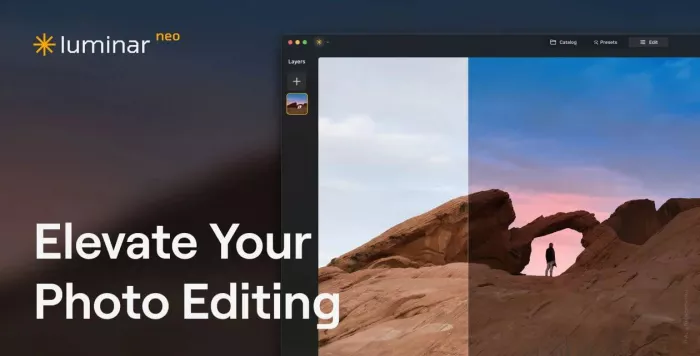
Luminar Neo has positioned itself as a creative AI editor that makes complex tasks relighting, portrait retouching, sky replacements approachable for non‑experts. It is especially popular among photographers who want cinematic looks without building everything from scratch.
Key AI Features
● AI relighting and sky replacement for dramatic landscape and outdoor transformations.
● Portrait‑specific AI tools for skin smoothing, face light, and background control.
● AI‑based noise reduction and sharpening, plus presets that can be applied in batches.
Main Strengths
Luminar Neo stands out for its balance of creative control and one‑click enhancements. Many reviewers highlight that it can bridge the gap between technically correct images and visually “finished” photos ready to publish or deliver. It is also sold via perpetual licenses as well as subscriptions, which appeals to users who dislike strict subscription lock‑ins.
Major Disadvantages
Neo is less optimized for massive, high‑volume workflows than specialized culling/editing tools aimed at studio photographers. Some users also report occasional performance hiccups or slower rendering on older hardware due to the heavy AI load. Finally, the mix of different bundles and offers can make pricing slightly confusing for new buyers.
Luminar Neo Pricing (2026 snapshot)
| License / bundle | What’s included | Approx. price* |
| Perpetual Desktop | Luminar Neo desktop (Win/Mac) | About $99. |
| Cross‑Device Perpetual | Desktop + mobile apps | About $139. |
| Max Perpetual | Desktop + mobile + Creative Library | About $159. |
| Discounted “full bundle” offer | Editor + multiple add‑ons during promo | Around $72.97 with code (limited‑time deal). |
| Subscription tiers (general range) | Annual plans, varying features and add‑ons | Roughly $120–$180 depending on package. |
3. Topaz Photo AI
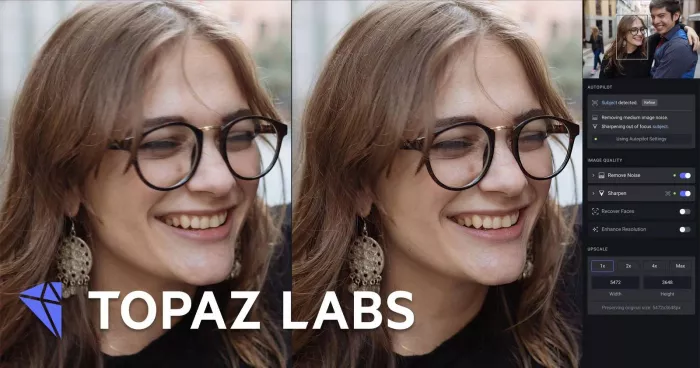
Topaz Photo AI is focused on intelligent enhancement rather than full manual editing, combining sharpening, denoising, and upscaling into one AI‑driven pipeline. It is highly valued in workflows where image quality is more important than artistic compositing.
Key AI Features
● Autopilot analysis of RAW files to detect noise, blur, and softness before applying targeted fixes.
● Sharpen AI for motion blur or missed focus, especially useful for wildlife and sports images.
● Gigapixel‑style upscaling to create large, print‑ready files from smaller originals.
Main Strengths
Topaz Photo AI delivers excellent results on technically flawed images, particularly those shot at high ISO or with slight motion blur. It can rescue files that would otherwise be unusable or too noisy for professional delivery. For photographers printing large or delivering high‑resolution exports to clients, its upscaling and sharpening are particularly attractive.
Major Disadvantages
This is not a full editor; you still need something like Lightroom, Photoshop, or Neo for layers, masking, and design work. The pricing model for Topaz’ suite and updates can feel expensive over time, especially when compared to all‑in‑one AI photo editors. It is also less relevant for casual creators who mostly need quick social‑media‑ready edits.
Topaz Photo AI / Suite Pricing
| Product / package | What you get | Approx. price* |
| Photo AI suite | Combined sharpening, denoising, upscaling | Around €150 initial purchase. |
| Annual update plan | Access to new features and updates | Around €99/year after first year. |
4. Aftershoot
Aftershoot is an AI‑driven tool built for photographers who handle huge volumes of images, combining culling, batch editing, and retouching in one environment. It is especially relevant for wedding, event, and commercial shooters who work under tight deadlines.
Key AI Features
● AI culling that automatically flags keepers and rejects based on sharpness, expressions, and duplicates.
● AI editing that learns your personal style and applies it consistently across entire shoots.
● AI retouching tools designed to fit into a professional workflow rather than occasional one‑off edits.
Main Strengths
Aftershoot’s standout advantage is speed at scale. Instead of manually sorting thousands of frames, photographers can let the AI handle first‑pass culling and global corrections, then refine a much smaller selection. Flat pricing with no per‑image fees also makes it predictable for studios with very large libraries.
Major Disadvantages
Because Aftershoot is geared toward professional, high‑volume use, it can be overkill for casual creators and influencers who work with smaller batches. The learning curve is also tied to integrating it into an existing workflow, so hobbyists may not see enough benefit to justify the cost. It is less focused on artistic compositing than on consistency and throughput.
Aftershoot Pricing
| Plan level | Target user | Pricing model |
| Pro / Studio | High‑volume professional shooters | Flat‑rate plans (no per‑image charges). |
| Other tiers | Varying feature sets and capacities | Tiered subscriptions by usage level. |
5. Pixelbin
Pixelbin is an AI image editing and optimization platform that is particularly interesting for product photos, e‑commerce, and developer workflows. It combines editing tools with APIs so teams can automate bulk image processing inside apps and websites.
Key AI Features
● AI background removal for product images, portraits, and lifestyle shots.
● AI upscaling and smart optimization to improve resolution while keeping file size manageable.
● Batch processing and API access for integrating editing directly into custom pipelines.
Main Strengths
Pixelbin’s ecosystem is built for automation and scalability. Instead of editing each asset manually, teams can process entire catalogs, handle format conversion, and auto‑compress images while preserving quality. This makes it attractive for SaaS platforms, marketplaces, and agencies that deal with thousands of visuals across web and mobile.
Major Disadvantages
Pixelbin is less of a creative editor and more of an optimization and enhancement platform. Designers who need brush‑level control, composites, or complex retouching will still need a dedicated editor like Photoshop or Luminar. Non‑technical users may also find the API‑focused side of the product unnecessary unless they have developer support.
Pixelbin Pricing
| Plan type | Ideal audience | Pricing style |
| Free / trial | Testing basic AI tools and workflow | Limited usage, ideal for evaluation. |
| Paid tiers | Teams needing bulk optimization | Tiered by usage, storage, and API volume. |
| Enterprise / API | Platforms integrating at scale | Custom, quote‑based plans. |
6. Pixlr (Web‑Based AI Editor)
Pixlr is a lightweight, browser‑based editor that offers surprisingly capable AI tools for quick, creative edits without heavy installs. It is especially appealing for marketers, social media teams, and bloggers who need fast turnarounds and simple workflows.
Key AI Features
● One‑click AI background removal and auto‑enhancement.
● Templates, overlays, and filters suitable for social graphics and marketing materials.
● Smooth performance in modern browsers on both desktop and mobile devices.
Main Strengths
Pixlr’s core strength is accessibility. Users can jump into editing directly from a browser tab, making it perfect for quick banner tweaks, thumbnail edits, or on‑the‑go corrections. Despite its simplicity, it still offers layer‑based editing and enough control to handle many everyday design tasks.
Major Disadvantages
Because it is web‑based and lightweight, Pixlr cannot compete with full desktop suites in terms of advanced masking, 3D tools, or highly detailed retouching. Its AI features are powerful for common tasks but may feel limited for high‑end commercial work. Also, some advanced options sit behind paid tiers, meaning free users may quickly run into limits.
Pixlr Pricing
| Plan | Best for | Typical structure |
| Free | Casual users, simple edits | Ad‑supported, limited AI and assets. |
| Premium / Plus | Creators and small teams | Monthly/annual subscription unlocks more tools. |
| Team / Business | Agencies and marketing teams | Multi‑seat plans, priority features, higher limits. |
Quick Snapshot: Which Tool Suits Whom?
| Tool | Best for | Standout strength |
| Photoshop | Designers, retouchers, power users | Deep control + Firefly generative AI. |
| Luminar Neo | Photographers, creators, solo editors | Cinematic looks and AI relighting. |
| Topaz Photo AI | Quality‑focused photographers, printers | Noise, sharpness, and upscaling rescue. |
| Aftershoot | Wedding/event pros, studios | High‑speed AI culling and style‑based editing. |
| Pixelbin | E‑commerce, SaaS, dev‑heavy teams | Automated bulk optimization via APIs. |
| Pixlr | Marketers, bloggers, social media creators | Fast, browser‑based AI editing.
|
Final Verdict
AI image editing has advanced so much that there’s now a tool for nearly every workflow. Adobe Photoshop remains the top choice for professional control and compositing, while Luminar Neo and Topaz Photo AI offer powerful results with less complexity. Aftershoot and Pixelbin focus on automating bulk photo processing, and Pixlr provides an easy browser-based editor for quick content creation. The best tool depends on your needs professionals may prefer Photoshop, high-volume photographers might choose Aftershoot, and creators looking for quick web edits may favor Pixlr.
Comments