A full afternoon went into clicking through every voice, rewriting the same script a dozen ways, and listening back to each take on OpenAI.fm. What stuck was how little friction sits between a blank text box and a voice that actually sounds like it means what it says. No account. No install. One paste, one tweak to the tone, one press of Play, and the words come back spoken.
This walkthrough breaks down what the tool is, the three controls that matter, the exact flow for using it, and the real output from the test runs. Pricing, a feature scorecard, and a straight verdict sit at the end.
At a glance
| Launched | March 20, 2025 |
| Type | Free, browser-based demo |
| Model | gpt-4o-mini-tts |
| Voices in the demo | 11 shown, with more available through the API |
| Standout feature | Instruction-based control over tone and delivery |
| Code export | Python, JavaScript, cURL |
| API price | About $0.015 per minute of generated audio |
| Best for | Prototyping voices, quick voiceovers, developer testing |
What OpenAI.fm Actually Is
OpenAI.fm is a free playground that OpenAI launched on March 20, 2025 alongside its next generation of audio models. It exists for one reason: to let anyone hear the gpt-4o-mini-tts text-to-speech model before wiring it into a real product. Type a script, pick a voice, describe how it should be delivered, and the page speaks it back in a few seconds.
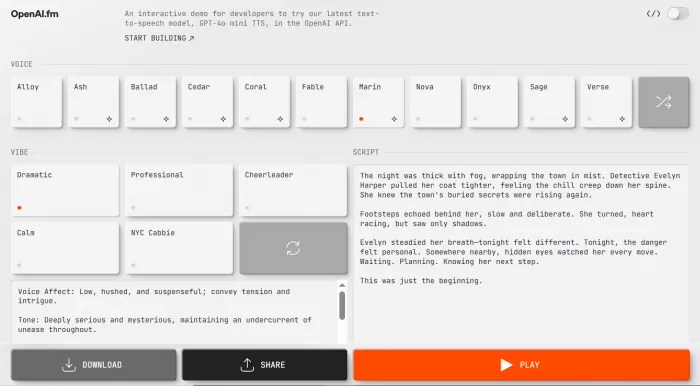
The headline trait of this model is steerability. Older text-to-speech engines let you choose a voice and little else. Here the model reads free-form instructions about tone, pace, accent and emotion, so the same sentence can land as a calm bedtime whisper or a loud carnival barker depending on what gets typed into the instructions.
🆓 No sign-up Opens with a script, voice and vibe already loaded. Audio plays on the first visit without a login or API key. | 🎚 Steerable delivery Plain-English instructions shape tone, speed, emotion and accent instead of a fixed robotic read. |
🌍 Broad language reach The underlying model handles dozens of languages, though the voices are tuned mainly for English. | 👩💻 Developer bridge A code toggle turns any setup into ready-to-run Python, JavaScript or cURL for the Speech API. |
The Three Controls That Run Everything
The whole screen comes down to three decisions: who speaks, how they speak, and what they say. Getting comfortable with these three is the entire learning curve.
| Control | Where it lives | What it sets |
|---|---|---|
| Voice | Top row of cards | Who speaks, the timbre and character |
| Vibe | Left panel presets | How it is delivered, the tone, pace and emotion |
| Script | Right panel box | What is said, plus inline stage directions |
1. Voice
The top row holds a set of named voice cards. Clicking one marks it with a small orange dot, and a shuffle button at the end of the row throws a random pick if decision fatigue sets in. The two newest voices, Cedar and Marin, are the ones OpenAI flags as its best quality for natural reads.
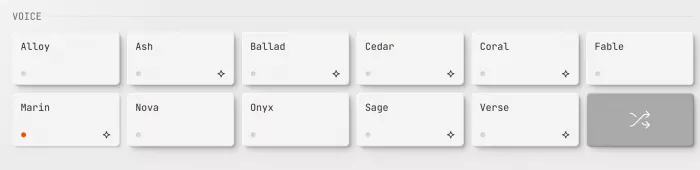
Voices in the demo
| Voice | Character in testing | Good for |
|---|---|---|
| Alloy | Neutral, even, no strong accent | Narration, explainers |
| Ash | Warm, slightly textured | Conversational reads |
| Ballad | Softer, lyrical pacing | Storytelling |
| Cedar | Full, grounded, natural pauses | Premium voiceover |
| Coral | Bright and friendly | Support bots, greetings |
| Fable | Expressive, animated | Characters, trailers |
| Marin | Clear and composed | Premium voiceover |
| Nova | Youthful, energetic | Ads, social clips |
| Onyx | Deep and steady | Trailers, authority tone |
| Sage | Measured and calm | Documentary, tutorials |
| Verse | Rounded, musical lilt | Poetry, warm narration |
The API also offers a few extra voices beyond the demo row, including echo and shimmer, so the production set is slightly larger than what the playground shows.
Quick voice picker by project
| Project type | Try first |
|---|---|
| Premium narration or voiceover | Cedar or Marin |
| Friendly support bot or welcome message | Coral |
| High-energy ad or social clip | Nova |
| Deep, authoritative trailer | Onyx |
| Calm tutorial or documentary | Sage |
| Character or animated read | Fable |
Field note Keeping the script fixed and clicking through voices back to back is the fastest way to find a fit. The gap between Cedar and Nova on the same sentence is obvious inside two listens. |
2. Vibe
Below the voices sit the vibe presets, ready-made delivery styles plus a refresh button for a fresh random preset. Each preset loads a block of instruction text that can be edited line by line. This is where the model gets told not just what to say, but how to feel while saying it.
Vibe presets
| Preset | What it does to the read |
|---|---|
| Smooth Jazz DJ | Relaxed, late-night radio warmth |
| Bedtime Story | Soft, slow and soothing |
| Old-Timey | Vintage, theatrical phrasing |
| Emo Teenager | Flat, moody and understated |
| Gourmet Chef | Enthusiastic, descriptive, inviting |
| Random refresh | Loads a surprise style to start from |
3. Script
The script box on the right is the text that gets spoken. It accepts a healthy chunk of text per run, and small stage directions written inside the script, such as asking a line to be whispered, get treated as further guidance to the model. Short, punctuated sentences read far more naturally than long run-ons.
How It Works, Start to Finish
| 1 | Open the site. Head to openai.fm in any browser. A sample script, voice and vibe are already set, so there is something to hear right away. |
| 2 | Pick a voice. Click any card in the Voice row. The active choice shows an orange dot. |
| 3 | Choose a vibe or write your own. Select a preset, then edit the instruction text to dial in tone, pace and emotion. |
| 4 | Paste the script. Drop the words into the right-hand box and trim anything awkward. |
| 5 | Press Play. The button turns to Busy while the audio renders, then Stop while it plays back. |
| 6 | Download, share or grab the code. Save the audio as a file, create a shareable link, or flip the code toggle for the API snippet. |
The Hands-On Test
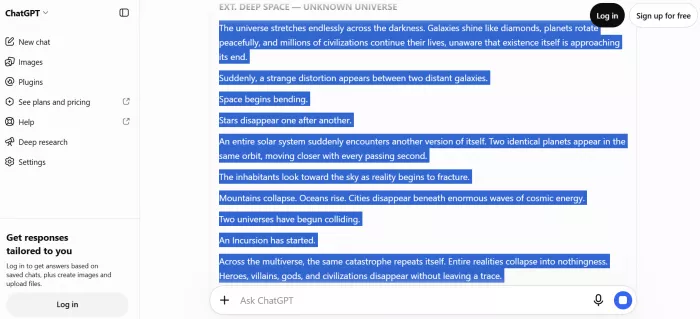
To push past the stock sample, a fresh script was written separately and dropped into the tool. The brief was a short cinematic voiceover about a cosmic Incursion, the kind of dramatic narration where delivery matters as much as the words. With the script in place, Cedar was selected for its grounded tone and the Old-Timey vibe was loaded to see how far the instructions could bend the read. The instruction block carried detailed guidance on emotion, inflection and word choice, which is exactly the kind of steering the model is built to follow.
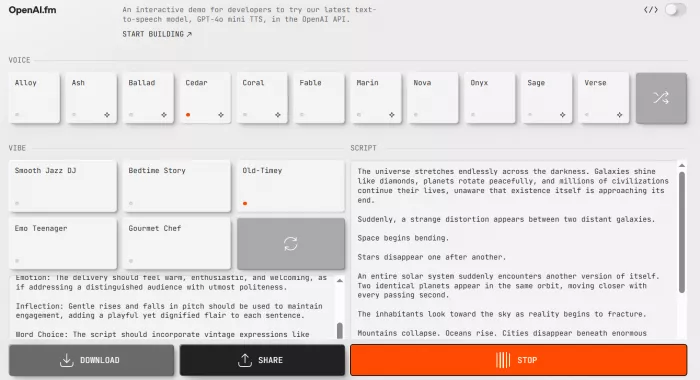
Generation was quick, with audio ready in a handful of seconds. During playback the button switches to Stop, so cutting a take short is one click. Cedar delivered the galaxies-colliding passage with weight and natural pauses, and the instructions clearly shaped the pacing rather than being ignored. On an invented proper noun the read wobbled slightly, which matches how the tool handles unusual words and names. Everyday sentences came back clean.
To listen to the full audio generated in this test click here
Test run at a glance
| What was tested | Result |
|---|---|
| Voice chosen | Cedar |
| Vibe applied | Old-Timey, with edited instructions |
| Script type | Dramatic cinematic narration |
| Time to audio | A few seconds |
| Emotion match | Strong, instructions clearly followed |
| Weak spot | Slight slip on an invented name |
The Developer Side: Output You Can Ship
The small code toggle at the top right is the feature that separates this from a toy. Flip it on and the exact voice, script and instructions turn into a working snippet, with tabs for Python, JavaScript and cURL. Nothing has to be rewritten by hand, because the same settings that produced the test audio carry straight into code.
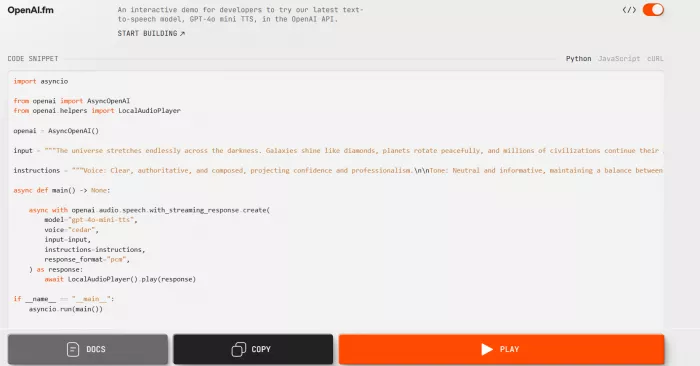
What that view hands over is a complete, paste-ready call that reproduces the audio heard in the demo. The model name, the Cedar voice, the script and the instruction block are all filled in, so the jump from playground to project is close to zero. The bottom bar swaps in developer actions: Docs opens the official reference, Copy grabs the whole snippet, and Play still runs the audio so the output can be checked against the code.
Audio actions vs code actions
| Mode | Bottom bar offers | Why it helps |
|---|---|---|
| Audio view | Download, Share, Play | Save the spoken file, send a link to the exact setup, or replay the take |
| Code view | Docs, Copy, Play | Jump to the reference, copy a runnable snippet, and still hear the result |
Why this matters Most demos stop at a play button. Here the download for the audio, the share link for the preset, and the copy-ready code mean a single tuned take can become a saved file, a shared reference, or a line in a real codebase without extra tooling. |
Worth knowing before shipping OpenAI usage policy asks that listeners are clearly told the voice they are hearing is AI-generated and not a real person. Anyone putting this audio in front of an audience should plan for that disclosure. |
Pricing
The demo itself costs nothing to use. The model behind it, gpt-4o-mini-tts, is billed through the OpenAI API at roughly $0.015 per minute of generated audio. That rate is what makes it attractive for production work rather than just experiments, since a large batch of narration stays inexpensive compared with many commercial voice services.
| Item | Cost |
|---|---|
| OpenAI.fm demo | Free, no account needed |
| gpt-4o-mini-tts via API | About $0.015 per minute of audio |
| Billing model | Pay for what gets generated, usage-based |
Pros and Cons
Strengths
| Limits
|
Who Gets The Most Out Of It
✍️ Writers Hear a draft read aloud to catch rhythm and awkward lines before publishing. | 🎬 Creators Spin up quick voiceovers for videos, shorts and social clips without a mic. |
🧑💻 Developers Prototype a voice, then lift the matching snippet straight into an app. | 🎓 Educators Turn lesson text into clear narration for accessible learning material. |
Final Verdict
4.4 / 5 genuinely useful, not just a demo After a full session of swapping voices, rewriting instructions and listening back to take after take, OpenAI.fm earns its place as more than a flashy showcase. The gap between an idea and hearing it spoken is about as short as it gets, and the moment the code toggle enters the picture, the same tuned take turns into something shippable. It will not replace a full audio editor, and anyone working outside English should test carefully before committing. For hearing a script come alive, finding the right voice, or prototyping a voice feature on a tiny budget, it does the job and does it fast. The honest recommendation: open it, run one real script through it, and the fit for a given workflow becomes clear within a minute. |
Comments