The first thing you notice about the SOA student portal is how plainly it greets you. A dark welcome panel on the left, the university crest on the right, a single User ID box, and a slightly crooked verification code you will soon recognise on sight. That unremarkable screen at soaportals.com is the front door to most of what a Siksha 'O' Anusandhan student handles across a term. Attendance that quietly decides exam eligibility sits behind it. So does the grade sheet that drops after results, the fee receipt a parent will ask for twice, and the registration window that opens for a few days before closing without much warning. Give it two semesters and the portal stops feeling like a website and becomes muscle memory. This guide maps what lives behind that login, how to move through it without losing time, and where it genuinely helps against where it will wear on your patience.
At a glance
Platform CampusLynx ERP | Built by JIL Information Technology |
Access at soaportals.com | Login type User ID + code |
What CampusLynx actually is
CampusLynx is not an SOA invention. It is an enterprise resource planning system built by JIL Information Technology Ltd., a Delhi company that has run campus software since 2000. The same platform keeps records for other large institutions, including the Jaypee universities, which is worth knowing because it tells you the system is built for scale rather than stitched together for one campus.
Think of CampusLynx as the engine room and the student portal as the one dashboard you are handed. Administration staff see admissions, payroll, hostel and library modules. You see a filtered slice: your academics, your money, your schedule. The student view is often labelled the WebKiosk in CampusLynx documentation, and whether a screen says WebKiosk or CampusLynx, it pulls from the same central database the exam cell and accounts office work in. That shared source is the reason a grade or a payment shows up for you within minutes of being entered on the staff side.
Getting into the portal
Three small steps, and only two fields stand between you and the dashboard.
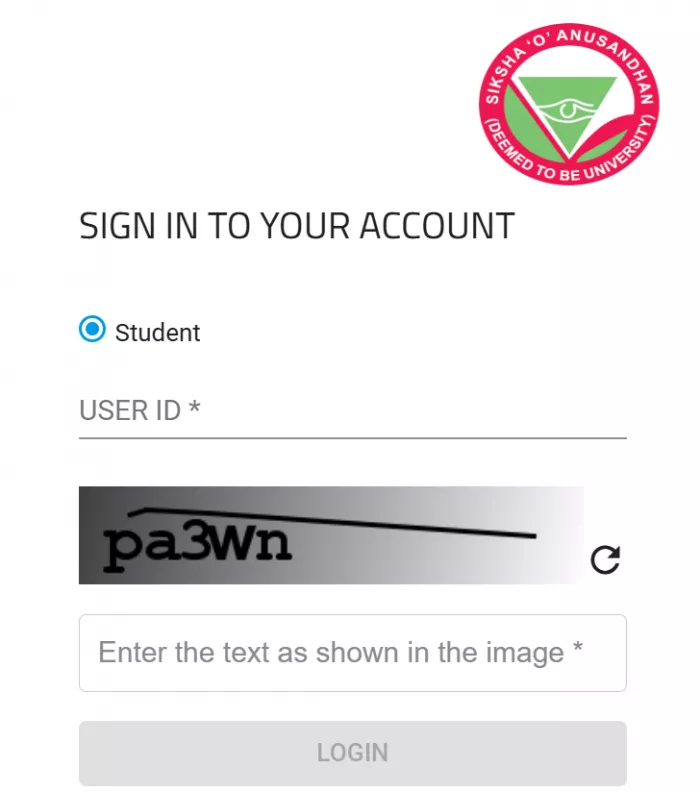
1. Keep the Student role selected The sign-in screen defaults to the Student option. Leave it as is unless you are staff. Faculty logins run on their own credentials. |
2. Enter your User ID This is the enrolment or registration number the university issued you, not an email address. One ID covers your whole programme, so the same login follows you from first year to final semester. |
3. Type the verification code Copy the characters from the distorted image exactly, matching case. If it looks unreadable, hit the refresh icon beside it for a fresh code instead of guessing. The Login button stays greyed until both fields are filled. |
| Keep it private. Your User ID is personal. Avoid saving the login on shared or library machines, and never pass it to anyone claiming to be support. |
What lives inside
Once you are through, the portal fans out into a handful of areas that cover the practical side of a semester. Most students live in three of them: attendance, results and fees. The rest come into play around exams and registration.

Attendance Lecture-by-lecture attendance with a running percentage, split into present, absent, late and medical leave. | Results and grade sheet Semester grades with SGPA and CGPA worked out for you, plus grade sheets to download once results are published. |
Course registration Register for the term, add or drop subjects, pick up back papers where allowed, and print your registration slip. | Fees Current dues, the fee structure for your programme, online payment, and receipts you can save or print. |
Exam logistics Your date sheet and seat allocation for each examination, so you know the room before you reach the hall. | Academic record Your profile, the subject and faculty mapping for your section, and any disciplinary note on file. |
Module reference
A quick map of what each area is for.
| Module | What you can do with it |
|---|---|
| Attendance | Track your per-subject percentage and spot a shortfall before it blocks an exam |
| Results | View SGPA and CGPA and download grade sheets after each semester |
| Registration | Enrol for the semester, add or drop papers, and print the registration slip |
| Fees | Check dues, pay online, and download receipts |
| Examinations | See your date sheet and seating plan for each paper |
| Grievance | Raise an issue through the online grievance channel |
| Feedback | Complete the student reaction or course survey when it opens |
Reading your attendance the right way
Attendance is the single most consequential screen for most students, because it decides whether you sit an exam at all. The portal does not just give you one figure. It records each status separately, and the difference matters when you are close to a cut-off.
| Status | What it means for your percentage |
|---|---|
| Present | Counts fully toward your attendance for that session |
| Absent | Pulls your percentage down for that session |
| Present late | Logged on its own; check how your department weighs it |
| Medical leave | Kept apart from plain absence and often treated differently for shortfall cases |
The number worth watching is the subject-wise percentage, not the overall average. A comfortable overall figure can hide one subject sliding under the threshold that bars you from its exam. The portal shows the split per lecture, so you can see exactly which class you missed and how far a single absence moved the needle. Checking it in the first week of every month is a cheap habit that saves a scramble later.
Fees and registration run on a clock
Two parts of the portal are time-bound, and both punish a late start. Fee payment is the first. The portal lists your dues and the fee structure for your course, and payment goes through standard online methods such as UPI and net banking, with a receipt generated the moment it clears. Save that receipt. It is the cleanest proof you have if a payment is ever queried, and the accounts office will accept the portal receipt without a second visit.

Registration is the second. The window to enrol for a semester, add or drop papers, and sort out back papers opens for a limited stretch and then shuts. Miss it and you are into manual requests and signatures, which is far slower than the few clicks the open window allows. Treat the opening of registration as a firm deadline rather than a suggestion, and get your subject choices settled before the queue builds on the final day.
Small habits that save you
Use it on your phone The portal runs in a mobile browser as well as on desktop, so a quick attendance or dues check never needs a laptop. | Save time-sensitive pages Keep local copies of date sheets, seat numbers and receipts. Pages can change once a new semester rolls over. |
Give syncs a moment If a grade or payment has not shown yet, wait a short while before raising it. The portal updates from the staff side with a brief gap. |
When the login fights back
The sticking points are few and predictable. Here is how to clear each one.
| What happens | What to do |
|---|---|
| The code keeps rejecting | Refresh it for a new one and match the case exactly; the characters are case sensitive |
| Login button stays greyed | Both the User ID and the verification text need to be filled before it turns active |
| You forgot your User ID | It is your enrolment or registration number from your admission paperwork; your department office can confirm it |
| The page will not load | Switch browser or network and clear your cache; traffic on result and registration days can slow it |
| A grade or fee looks off | Cross-check your own records first, then raise it through the grievance channel or the right office |
Where it shines, where it frustrates
Works well ● One login for everything academic and financial, so there is no juggling separate systems ● Live data from the same database staff use, which keeps grades, dues and attendance current ● Proven across several universities rather than a fragile one-off build ● Runs in a phone browser, so quick checks are genuinely quick | Tests patience ● The interface is functional rather than polished, and some navigation feels dated ● A verification code at every login adds friction, more so on mobile ● Traffic spikes on result and registration days can slow pages right when you need them ● The fee and registration windows leave little room for a late start |
The bottom line
Here is the honest shape of it. The SOA CampusLynx portal is not going to win design awards, and nobody who has used it through a few fee cycles would pretend otherwise. What it does do is hold the pieces of your academic life in one place and keep them current, which is the whole job. Once the login routine turns automatic, you stop thinking about the tool and start using it the way it is meant to be used: a quick attendance check before an exam block, a receipt pulled up when it is asked for, a registration slip printed well inside the window. The friction is real, mostly the code prompt and the odd slow day, but none of it is the kind that stops you getting what you came for.
For a student the practical advice is short. Learn where your attendance and dues live, keep an eye on the dates that matter, and save anything you might need to prove later. Do that, and the portal quietly earns its keep across the whole programme.
Best for: Daily attendance, results and fee tracking Watch out for: Code prompts and strict deadlines Verdict: Plain, reliable, and worth knowing well |
Comments