Table of Contents
- Quick Comparison Table
- How We Tested
- 1. Canva - Best Overall
- 2. Adobe Express - Best for Branding & Professional Polish
- 3. CapCut - Best for Short-Form Creators
- 4. VidIQ - Best for Data-Driven YouTube Strategy
- 5. TubeBuddy - Best for A/B Testing
- 6. Fotor - Best Value
- 7. Snappa - Best for Beginners
- 8. Picsart - Best Free Mobile Option
- Which Tool Fits Your Creator Type?
- AI Thumbnail Generators vs. Canva/Photoshop: What's the Real Difference?
- Practical AI Thumbnail Tips and Prompt Examples
- Final Recommendation
A thumbnail can decide whether someone clicks on your content or keeps scrolling. On YouTube, TikTok, podcasts, and blogs, the image is often the first thing people notice. AI thumbnail tools have made creating those images faster. Text rendering has improved and iterations are quicker, with templates now covering more platforms too. But choosing the right tool isn't as simple as picking the one with the most AI features. Some platforms can generate a complete visual from a text prompt, while others focus on templates and stock images, or on editing existing designs. Tools such as VidIQ and TubeBuddy take another approach by combining thumbnail features with broader YouTube research and optimization.
This guide compares eight popular options for creators in 2026, including YouTubers, TikTok and Instagram creators, podcasters, bloggers, streamers, course creators, marketers, freelancers, and agencies. We look at what each tool does well and where it falls short, plus which type of creator will get the most from it.
Pricing and AI credit limits can change frequently. The figures in this guide reflect official pricing information and independent sources checked in mid-2026. Always confirm the current plan details before subscribing.
Quick Comparison Table
| Tool | Best For | Price | Free Plan | AI Features |
| Canva | Best Overall | Pro: $15/mo (or $120/yr) | Yes, generous | Text-to-image, background removal, Magic Studio suite |
| Adobe Express | Best for Branding | Premium: $9.99/mo | Yes | Firefly-powered generation, 4 options per prompt |
| CapCut | Best for Short-Form | Standard: $9.99/mo · Pro: $19.99/mo | Yes, generous | Prompt-to-thumbnail via Seedream & Nano Banana Pro |
| VidIQ | Best for YouTube Strategy | Boost: ~$16.58–39/mo | Yes, 150 AI credits/mo | AI thumbnail suggestions tied to keyword/SEO data |
| TubeBuddy | Best for A/B Testing | Legend: ~$23–49/mo | Yes, limited | Basic AI generator + live thumbnail A/B testing |
| Fotor | Best Value | Pro: $8.99/mo | Yes, watermarked | Fotor M2 model, text-to-image + templates |
| Snappa | Best for Beginners | Pro: $10/mo | Yes, 3 downloads/mo | Minimal - template + stock-photo based |
| Picsart | Best Free Mobile Option | Plus: ~$7–15/mo | Yes, 5 credits/week | AI Replace, AI Enhance, mobile generation |
How We Tested
We evaluated each tool by exploring its free tier or public demo directly, then cross-checking what we saw against official documentation and independent reviews. This is not a controlled experiment measuring real click-through rate across live channels. We didn't run identical prompts across every platform and count clicks. It's a hands-on, documentation-grounded comparison, and we've tried to keep our observations (below, in each tool's section) clearly separated from verified facts like pricing and plan limits.
We judged each tool against seven criteria:
- Image quality - how clean or realistic AI-generated visuals look at thumbnail size
- Text accuracy - whether AI-generated or overlay text renders legibly and correctly
- Customization - how much control you have over layout, fonts, faces, and branding after generation
- Speed - how quickly you get from prompt or template to an exportable file
- Templates - depth and relevance of the template library
- Platform support - correct export dimensions for YouTube, Shorts, Reels, TikTok, podcast covers, and blog headers
- Value for money - what you get at each price tier, including how usable the free plan actually is
1. Canva - Best Overall
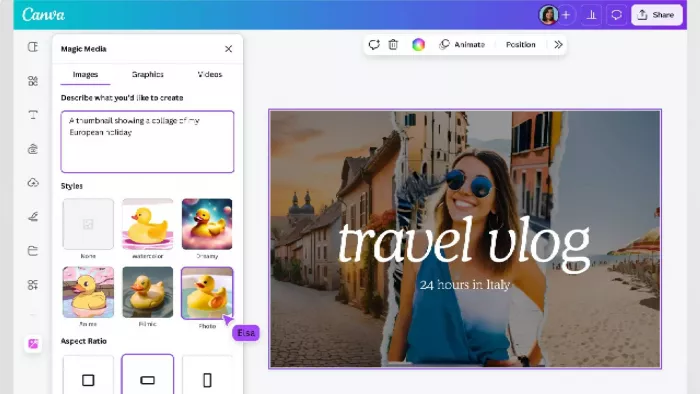
Best for: Creators who want one tool for thumbnails, social graphics, and everything else, without switching apps.
Canva's AI thumbnail features live inside a suite it calls Magic Studio. You can generate a thumbnail from a text prompt, start from a template organized by niche (gaming, beauty, tech, vlogs), or blend both: generate a background, then drop in your own photo and text.
What we noticed: Generating from a blank prompt is fast, but the results still read as "AI-generated" until you swap in your own photo or heavily edit the layout. The template-first path (browse, then customize) consistently produced more polished, publish-ready results than starting from an empty prompt.
Key Features:
- Template-first thumbnail creation: Start with a ready-made design instead of building everything from scratch.
- AI + manual editing in one place: Generate a background or visual with AI, then change the text, images, or layout yourself.
- Magic Studio tools: Background removal, AI image generation, resizing, plus other editing tools are built into the same workflow.
- Brand Kit: Save your fonts, colors, logos, and other brand elements so thumbnails stay visually consistent.
- Easy format switching: Resize the same design for YouTube, Instagram, TikTok, blogs, or other platforms.
AI Capabilities AI features run on a credit system. Canva's free plan includes a small monthly allowance of premium AI generations; Pro raises that significantly. Canva's newer conversational mode lets you describe what you want and get an editable design back rather than a flat image, which matters if you plan to keep adjusting text after generation.
Pricing: Canva Free is permanent and covers a meaningful amount: over a million templates, basic AI tools, and 5GB of storage. Canva Pro runs $15/month billed monthly, or $120/year (about $10/month) billed annually. Team/Business pricing is per-seat and has changed structure more than once recently, so check Canva's official pricing page for the current rate.
Pros:
- The easiest option if you want AI generation without giving up normal design controls.
- Templates often produce better-looking results than starting with a completely blank AI prompt.
- You can fix a weak AI result yourself instead of regenerating everything.
- Works well when thumbnails are one part of your wider content workflow.
Cons:
- AI-generated designs can still have that recognizable "AI look" without manual editing.
- The huge template library can actually make it harder to choose a direction.
- Heavy AI use can consume credits quickly.
- Some of the more useful AI and branding features require a paid plan.
Final Verdict Canva is a safe first choice for most creators because it doesn't lock you into "AI-generated or nothing." You can fix a prompt that didn't land instead of starting over.
2. Adobe Express - Best for Branding & Professional Polish
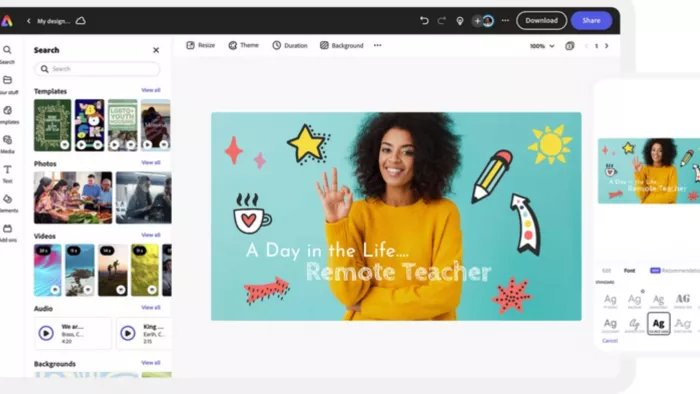
Best for: Creators and marketers who want thumbnails that fit a broader, brand-consistent workflow, especially if you already use other Adobe tools.
Adobe Express runs its AI generation through Adobe Firefly. You describe what you want (something like "bold podcast thumbnail with two hosts, split background, neon accents") and it returns a set of options to refine.
What we noticed: Firefly's text rendering inside generated images was more consistent than we expected, and the four-options-per-prompt format made it easy to pick a starting point without regenerating repeatedly. The trade-off is a smaller thumbnail-specific template selection than Canva.
Key Features:
- Firefly image generation: Create visual concepts from a text description and choose from multiple variations.
- Four options per generation: Useful when you want to compare several starting points without repeatedly changing the prompt.
- Adobe fonts and assets: Particularly useful for creators already working with Adobe products.
- Brand-focused editing: Keep fonts, colors, or visual elements consistent across your content.
- Generative editing: Refine parts of a design instead of rebuilding the entire thumbnail.
AI Capabilities Each Firefly generation produces four options per prompt. The free plan includes a limited monthly credit allowance for generative AI; Premium expands that considerably, and Adobe's Firefly Pro tier bundles a much larger credit pool with Photoshop on web and mobile.
Pricing: Free plan available. Premium is $9.99/month, confirmed on Adobe's official pricing page. Adobe Express Premium is also included with most Creative Cloud single-app subscriptions, so check your existing Adobe plan before paying twice.
Pros:
- Generated text and overall visual output felt more polished than expected during testing.
- Four variations make it quick to explore different visual directions.
- A natural choice if Photoshop, Premiere, or other Adobe tools are already part of your workflow.
- Better suited to brand-conscious work than tools that focus mainly on quick social templates.
Cons:
- Its thumbnail template selection isn't as deep as Canva's.
- The interface becomes more complex when you move beyond basic editing.
- AI credits can become a limitation if you're constantly regenerating designs.
- Less compelling as a standalone thumbnail tool if you don't use Adobe's wider ecosystem.
Final Verdict: Adobe Express is the strongest pick for marketers and agencies, and for brand-conscious creators who want thumbnails that look consistent with the rest of their assets, particularly if Photoshop or Premiere are already in the mix.
3. CapCut - Best for Short-Form Creators
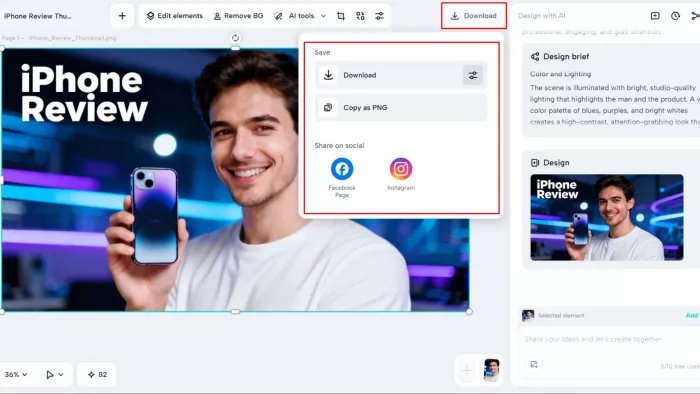
Best for: TikTok, Reels, and Shorts creators who already edit video in CapCut and don't want to open a separate app for covers.
CapCut's AI Design tool turns a short prompt (something like "excited gamer pointing at screen" or "shocked face with red arrow") into a finished image, drawing on multiple underlying AI models. Because it lives inside the same app many short-form creators already use to edit, it removes a step rather than adding one.
What we noticed: Generation felt notably fast compared to switching to a separate browser tab for a dedicated AI tool, and the free tier let us generate repeatedly without hitting a paywall. The trade-off: some Pro-only templates and effects carry a watermark on the free plan, and the interface has more going on than you need if all you want is one static image.
Key Features:
Prompt-based AI Design: Turn a short description into a thumbnail or cover concept.
Multiple AI models: Choose different generation styles based on the visual you're trying to create.
Built-in video-to-thumbnail workflow: Create the video and its cover without leaving the same ecosystem.
Vertical format support: Works naturally with 9:16 content for Shorts, Reels, and TikTok.
Post-generation editing: Add text, arrows, stickers, or other familiar short-form design elements after generation.
AI Capabilities CapCut lets you switch between AI models depending on the look you're after. Some handle realistic faces better, others suit bold, cartoon-style thumbnails. You can also regenerate a specific element (a face, a background) while keeping the rest of a layout intact.
Pricing: CapCut restructured its plans in early 2026. The previous "Pro" tier was renamed Standard (about $9.99/month), and a new Pro tier sits above it at $19.99/month (or $179.99/year), which also covers CapCut's broader AI video toolkit: avatars, voice cloning, and more. The free plan remains functional for basic editing and thumbnail generation, but check CapCut's site directly, since these prices have shifted more than once in the last year.
Pros:
- Particularly fast when you're already editing videos in CapCut.
- Strong fit for creators who regularly switch between 16:9 and vertical content.
- The free tier gives you room to experiment before paying.
- AI generation and video editing live in the same workflow.
Cons:
- The interface can feel overloaded when all you need is one thumbnail.
- Paid AI credits are shared with other CapCut AI features, so thumbnails aren't the only thing using your allowance.
- Less focused on YouTube-specific thumbnail strategy than VidIQ or TubeBuddy.
- Some free-plan templates and effects come with restrictions or watermarks.
Final Verdic: t If you're already living inside CapCut for editing, its AI Design tool is the most efficient option here: you're not adding a subscription or app to your workflow.
4. VidIQ - Best for Data-Driven YouTube Strategy
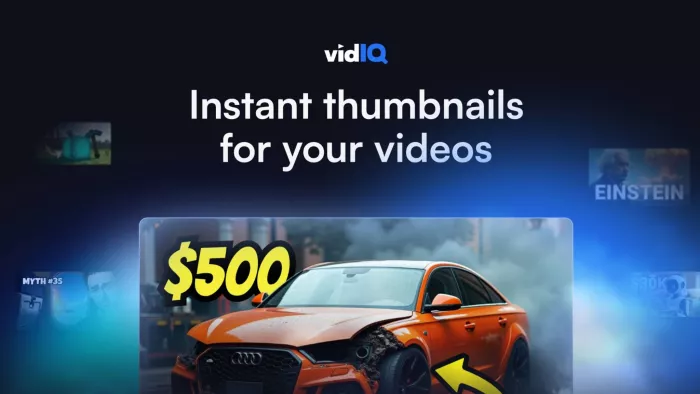
Best for: YouTubers who want thumbnail ideas tied to keyword research and channel analytics, not a standalone design tool.
VidIQ began as a YouTube SEO and analytics platform and later added AI features on top of its research tools: a Coach, title and description generators, plus a thumbnail generator. The thumbnail feature works best as a companion to VidIQ's keyword and trend tools, not as a replacement for a dedicated design app.
What we noticed: The competitor-analysis flow (pasting in a rival video's URL and getting thumbnail feedback) was the most distinctive part of the toolset. The generator itself produced a rough starting composition rather than a finished, publish-ready thumbnail; expect to refine it elsewhere.
Key Features:
- AI thumbnail ideas: Generate concepts alongside VidIQ's wider YouTube research tools.
- Competitor thumbnail analysis: Enter a competitor's video and get suggestions for improving its packaging.
- Keyword integration: Thumbnail ideas sit alongside the keyword, trend, title, or channel research you're already doing.
- YouTube Studio integration: Access VidIQ's research and performance information without constantly switching workflows.
- Packaging-focused approach: Treats the thumbnail as part of the video's overall growth strategy rather than an isolated graphic.
AI Capabilities The thumbnail tool generates prompt-based compositions rather than offering deep manual controls. It's better as a starting point or idea generator than a full design replacement.
Pricing: VidIQ has a permanent free plan with 150 AI credits per month. Paid pricing has consistently been reported as: Boost around $16.58/month billed annually (or $39/month month-to-month), and Max around $39/month on annual billing with a larger AI credit pool. Note that different sources report slightly different numbers for Max, and VidIQ's tier names have changed more than once recently - confirm current pricing on vidiq.com before subscribing.
Pros:
- The competitor-analysis feature gives it a purpose that normal design tools don't have.
- Useful when you're deciding what thumbnail to make, not just how to make it.
- Makes more sense for serious YouTube strategy than for general graphic design.
- Can connect thumbnail decisions with titles, keywords, and trends.
Cons:
- The generated thumbnail is more of a starting concept than a finished design.
- Manual design controls are nowhere near Canva or Adobe Express.
- Expensive if thumbnail generation is the only feature you want.
- Less useful for creators working mainly on Instagram, TikTok, blogs, or podcasts.
Final Verdict: VidIQ makes sense for YouTubers already paying for it (or considering it) for keyword research, with thumbnail generation as a bonus rather than the main reason to sign up.
5. TubeBuddy - Best for A/B Testing
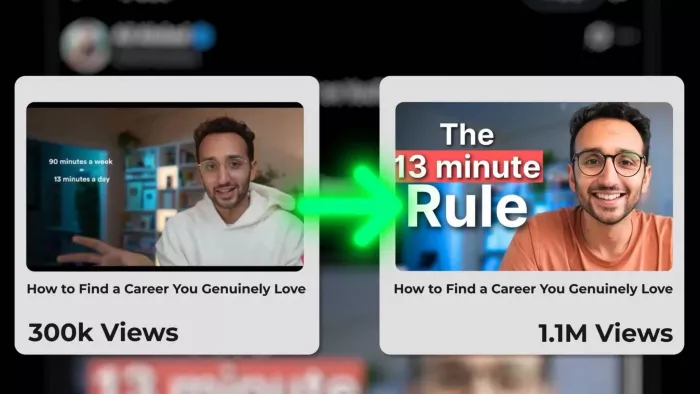
Best for: YouTubers who want to test thumbnails with real data instead of guessing which one performs better.
TubeBuddy is a browser extension that sits inside YouTube Studio. Its AI thumbnail generator is fairly basic, not an AI-first tool by any means, but its A/B testing feature, which runs live experiments on published videos, is something almost nothing else on this list offers.
What we noticed: The thumbnail generator produces a simple starting composition, nowhere near as polished as Canva or CapCut's output. Where TubeBuddy earns its place is the testing workflow itself. It's built directly into the Studio interface you already use, so there's no extra tab or export step.
Key Features:
- Live thumbnail A/B testing: Compare different thumbnails on published YouTube videos and see which performs better.
- Thumbnail analysis: Get feedback on existing thumbnail designs instead of generating everything from scratch.
- Basic AI generation: Create a starting concept when you need an idea quickly.
- YouTube Studio integration: Testing and optimization happen inside the environment YouTubers already use.
- Bulk creator tools: Helpful for channels managing a large library of existing videos.
AI Capabilities Intentionally simple. A prompt or title produces a basic composition. TubeBuddy's real value in this category is testing what you already have, not generating something new.
Pricing Free plan available with a limited thumbnail generator. Paid tiers have been reported roughly as: Pro around $4.99–9/month, Star around $12–19/month, and Legend (which unlocks A/B testing, bulk tools, and AI features) somewhere between $23 and $49/month depending on billing cycle. TubeBuddy's tier names and prices have shifted during 2026 - confirm current numbers on tubebuddy.com.
Pros:
- Its biggest advantage isn't AI generation, but finding out which thumbnail actually performs better.
- Useful when you already have several thumbnail ideas and want data to choose between them.
- Fits naturally into an existing YouTube workflow.
- More valuable for established channels with enough traffic to make testing worthwhile.
Cons:
- The AI-generated designs are noticeably less polished than Canva, CapCut, or Adobe Express.
- You need existing thumbnail candidates to get the most from the platform.
- The most useful testing features are tied to higher-priced plans.
- Less useful if you create content for platforms outside YouTube.
Final Verdict: TubeBuddy isn't built to design a thumbnail from scratch, but works well once you have two or three candidates and want real data on which one earns more clicks.
6. Fotor - Best Value
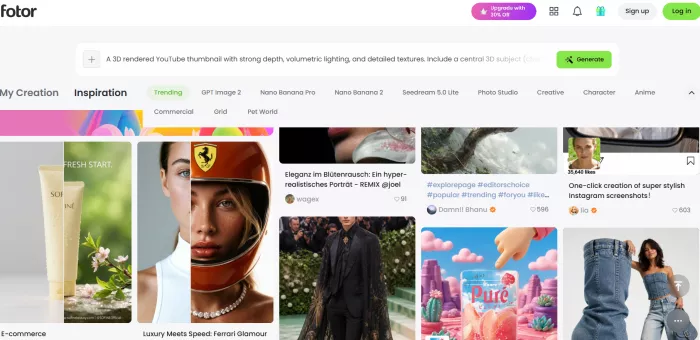
Best for: Creators who want thumbnail generation bundled with genuinely capable photo editing, at a lower price point than Canva or Adobe.
Fotor pairs an AI design maker with a broader photo-editing toolkit, powered by its own model, Fotor M2, which the company says handles text-to-image generation and semantic understanding better than its earlier version.
What we noticed: The photo-editing tools (retouching, object removal, background swap) felt more capable than the AI thumbnail generation itself, which is a reasonable trade-off if editing existing photos matters more to you than generating new ones from scratch.
Key Features:
- AI image and design generation: Create visual elements from prompts alongside conventional editing tools.
- Photo editing: Retouch photos, remove objects, change backgrounds, or clean up images before using them in thumbnails.
- AI tools in one editor: Generation, enhancement, and background editing work within the same platform.
- Templates: Start with existing layouts rather than generating an entire design from zero.
- Brand and collaboration features: Useful for creators and small teams working on repeated content.
AI Capabilities AI generation, background removal, and enhancement all draw from the same shared credit pool, so heavy thumbnail generation competes with other AI use on your account.
Pricing: The free plan watermarks exports. Paid pricing starts at $8.99/month for Pro, confirmed via multiple independent listings; a higher Pro+ tier (around $19.99/month) adds commercial stock access and business features. Compare monthly versus annual billing carefully on Fotor's official pricing page, since annual-equivalent rates are sometimes quoted lower elsewhere.
Pros:
- Stronger choice if you're doing photo editing and thumbnail creation at the same time.
- Cheaper entry point than some larger design suites.
- Gives you more control over an existing photo than a pure AI generator would.
- Good middle ground between a simple template editor and an AI image generator.
Cons:
- The AI generation itself isn't as convincing as the strongest options in this comparison.
- Free exports are watermarked.
- One shared AI credit pool means different editing tasks compete for the same credits.
- Less attractive if you only need simple thumbnail layouts.
Final Verdict: Fotor works well if thumbnails are only part of what you need. If you're also editing photos or doing general design work, it consolidates more into one subscription than a thumbnail-only tool would.
7. Snappa - Best for Beginners
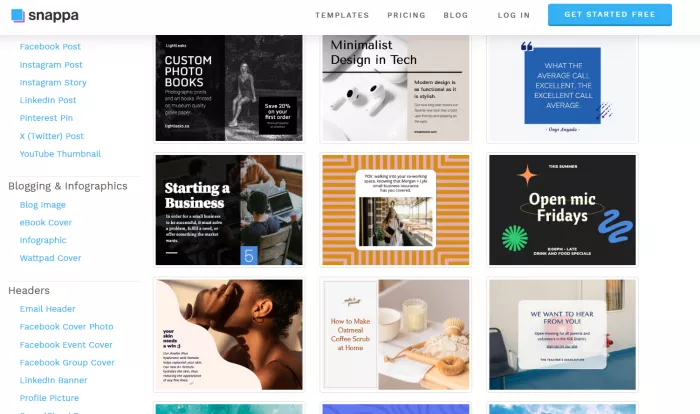
Best for: Creators who want the simplest possible path from idea to finished thumbnail, with minimal learning curve and no AI prompting.
Snappa keeps things deliberately simple. It's built around a large stock photo library and thousands of templates rather than AI generation, which makes it a good fit if writing prompts feels like more friction than help. Of the eight tools here, Snappa is the least AI-first. Its value is speed and simplicity, not generative capability.
What we noticed: Picking a pre-sized template and swapping in a stock photo took noticeably less time than any AI-generation workflow on this list. There's no AI text-to-image tool to speak of, so if you need a specific face or scene generated, Snappa isn't built for that.
Key Features:
- Pre-sized designs: Start with the correct dimensions for YouTube, social media, blogs, or other formats.
- Stock-photo workflow: Pick an image, place it into a template, add text, then export without dealing with AI prompts.
- Large template collection: Designed around quick edits rather than building a design from scratch.
- One-click resizing: Adapt an existing graphic for another platform quickly.
- Simple pricing: No complicated AI credit system to monitor.
AI Capabilities Minimal. This is Snappa's clear limitation on this list. It's a template-and-stock-photo tool first, not an AI generator.
Pricing: Free plan is limited to around 3 downloads per month. Pro is $10/month with unlimited downloads and no feature-gating by tier, a simple structure compared to competitors' credit systems.
Pros:
- Probably the fastest option here if you don't actually want AI.
- Extremely easy for someone with little or no design experience.
- Stock images make it easy to create a clean thumbnail without generating artificial faces or scenes.
- Predictable workflow with no need to learn prompt writing.
Cons:
- It barely belongs in an AI-generator comparison because generative AI isn't its strength.
- You can't create a highly specific person, scene, or visual from a text prompt.
- Fewer creative possibilities than Canva or Adobe Express.
- The templates can look familiar if you don't customize them enough.
Final Verdict Snappa suits creators, often bloggers, small business owners, or email marketers, who want a fast, no-fuss thumbnail without wrestling with AI prompts or a design learning curve.
8. Picsart - Best Free Mobile Option
Best for: TikTok, Instagram, and course creators who design primarily on their phone.
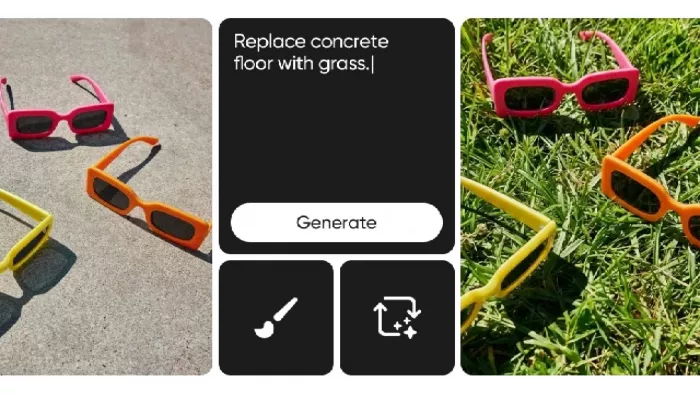
Picsart is a mobile-first app combining AI photo editing with design templates. Its AI Replace tool swaps objects or backgrounds via a text description, and AI Enhance handles automatic lighting and sharpening, both useful for quick thumbnail touch-ups without a laptop.
What we noticed: AI Replace worked best on simpler swaps (background, single object) rather than generating a whole scene from scratch. The free tier's weekly credit cap and watermarks on some AI outputs are the main limitation for regular use. Expect to hit that ceiling within a session or two if you're iterating.
Key Features:
- AI Replace: Change a background or individual object using a text instruction.
- AI Enhance: Improve the appearance of an existing image without rebuilding it.
- Mobile-first editing: Designed for creators who want to work from their phone.
- Templates and stickers: Add social-style graphics or finishing touches quickly.
- Batch editing: Useful when producing a series of similar graphics, such as course or lesson thumbnails.
AI Capabilities Runs on a weekly/monthly credit system. The free tier includes a small number of AI generations per week, with watermarks on some AI-processed outputs.
Pricing: Free plan with limited weekly AI credits and watermarks on some outputs. Paid tiers have been reported from roughly $7/month (annual billing, entry tier) up to higher Pro and team tiers priced per seat. Reported figures vary noticeably by source, so check picsart.com directly before committing.
Pros:
- One of the better choices when your entire thumbnail workflow happens on a phone.
- AI Replace is more useful for quick corrections than generating an entire thumbnail from scratch.
- Good for turning an existing photo into something more suitable for social media.
- Practical for creators producing lots of small graphics on the go.
Cons:
- Better at editing and improving existing images than creating complete thumbnails from nothing.
- Free AI credits disappear quickly if you're experimenting heavily.
- Some AI outputs are restricted or watermarked on the free plan.
- Desktop precision and layout control aren't as strong as Canva or Adobe Express.
Final Verdict: Picsart is the strongest mobile-first option here, particularly for TikTok/Instagram creators and course creators who need fast turnarounds without opening a laptop.
Which Tool Fits Your Creator Type?
| Creator Type | Best Fit | Why |
| YouTubers | VidIQ + TubeBuddy | AI packaging ideas paired with real A/B click-data |
| TikTok / Instagram Creators | CapCut, Picsart | Native to short-form editing and mobile workflows |
| Podcasters | Canva, Adobe Express | Strong cover-art templates and brand consistency |
| Bloggers | Snappa, Fotor | Fast featured images without heavy AI prompting |
| Streamers | Canva, Adobe Express | Consistent branded thumbnails across platforms |
| Course Creators | Picsart, Canva | Batch editing for many lesson thumbnails |
| Marketers / Freelancers / Agencies | Adobe Express, Canva | Brand kits, commercial-use licensing, team tools |
AI Thumbnail Generators vs. Canva/Photoshop: What's the Real Difference?
This is a spectrum, not a binary choice, and Canva itself spans both ends of it.
Traditional design tools like Photoshop give you full manual control (layers, masks, precise typography) but require real design skill and time, unless you're using Photoshop's own generative fill features.
Template-based platforms like Snappa and Fotor trade some of that control for speed. You start from a pre-built layout instead of a blank canvas, which is faster but can look generic without customization.
AI-first generators like CapCut and Adobe Firefly go further: describe what you want and the tool generates a finished (or near-finished) composition, including faces and backgrounds. This is fastest for high-volume creators, but the results often need manual cleanup, particularly around text accuracy and facial consistency.
For most creators, the practical move combines both: use an AI generator for a fast starting point, then finish it in a more flexible editor if the composition needs precision the AI didn't get right.
Practical AI Thumbnail Tips and Prompt Examples
A few habits tend to produce better AI-generated thumbnails, regardless of which tool you use:
- Be specific about emotion. "Shocked face" reads differently to an AI model than "mildly surprised face" since precise emotional cues matter.
- Describe composition, not just subject. Mention where a face or product should sit in the frame; most generators default to centering everything.
- Keep text separate from the visual prompt when you can. AI text rendering has improved, but adding text manually after generation still gives you more control over font, size, and contrast.
- Preview at small size. Thumbnails are usually viewed around 120–320 pixels wide. Check your design at that scale before publishing. Details that look sharp full-size often disappear on mobile.
- Match aspect ratio to the platform before generating: 16:9 for YouTube, 9:16 for Shorts/Reels/TikTok, 1:1 or 4:5 for Instagram feed and podcast cover art.
Example prompts by content type
- Tech review: "Person holding a smartphone with a surprised expression, bold red arrow pointing at the screen, clean studio background, high contrast lighting"
- Gaming: "Excited gamer wearing headset, mouth open in shock, colorful gaming setup blurred in background, dramatic side lighting"
- Podcast cover: "Two people facing each other in conversation, warm studio lighting, minimalist background with soft gradient"
- Educational/course: "Friendly instructor pointing toward blank space, bright clean background, approachable tone"
- Vlog/lifestyle: "Person mid-laugh outdoors, natural lighting, candid framing, warm color grading"
Final Recommendation
There's no single best AI thumbnail generator. The right pick depends on what kind of creator you are and what you're already paying for:
Want one tool that does it all reasonably well? Start with Canva. It balances AI speed with full manual control better than anything else on this list.
Already inside the Adobe or CapCut ecosystem? Use Adobe Express or CapCut. You'll save time by not adding a new app to your workflow.
A YouTuber focused on growth strategy? Pair VidIQ for AI-informed packaging ideas with TubeBuddy for real A/B testing once you have candidates to compare.
Short on budget and want the simplest workflow? Snappa or Canva's free plan will get you a clean, professional thumbnail fastest, without needing to learn AI prompting at all.
Designing mainly from your phone? Picsart is the strongest mobile-first option, especially for TikTok, Instagram, and course creators producing frequent small graphics.
Comments