Why Are So Many People Canceling Canva?
If you are thinking about canceling, you are in good company. Canva now has over 265 million monthly active users, but only about 31 million of those are paying subscribers. That means roughly 89% of the user base sticks with the free tier or has opted out of paid plans at some point.
265M Monthly Active Users | 31M Paying Subscribers | ~89% Users on Free Tier | 44% 1-Star Reviews on Trustpilot |
According to Trustpilot, Canva sits at a 3.7 out of 5 rating across 4,000+ reviews, and nearly 44% of those are 1-star ratings. The most frequently cited complaints include unexpected charges, features that used to be free getting moved behind the paywall, and difficulty reaching a real human on the support team. On top of that, Canva raised the Teams subscription price from $300 to $500 per year, a 66% increase that triggered significant backlash.
💡 Good to know:
Canceling your subscription does not delete your Canva account or any of your designs. Everything stays in your account on the free tier. You only lose access to premium templates, stock photos, background remover, and other Pro features once your current billing period ends.
What You Are Currently Paying
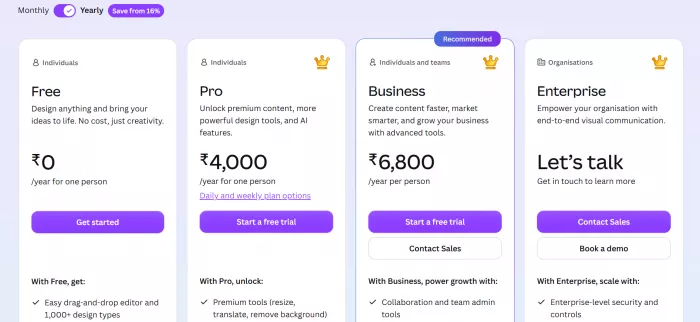
Before you cancel, it helps to know exactly how much you are saving. Here is a breakdown of Canva's 2026 pricing across all tiers so you can see what comes off your bill.
| Plan | Monthly Price | Annual Price | Key Features |
| Canva Free | $0 | $0 | 250K+ templates, 5 GB storage, basic AI tools |
| Canva Pro | $15/mo | $120/yr (~$10/mo) | Premium templates, Brand Kit, 1 TB storage, Background Remover, Magic Resize |
| Canva Business | $20/user/mo | $200/user/yr | Everything in Pro + Approval workflows, 500 GB/user, SSO support |
| Enterprise | Custom Quote | SCIM, audit logs, dedicated success manager, advanced brand controls |
⚠️ Watch out for auto-renewal:
Canva plans renew automatically. The Better Business Bureau complaint file includes multiple reports of users getting charged $120 for an annual renewal before they realized the billing date had passed. Set a calendar reminder 3 to 5 days before your renewal date.
Step-by-Step: Cancel on Every Platform
The cancellation process depends on where you originally subscribed. If you signed up through Canva's website, you cancel on the website. If you paid through the Apple App Store or Google Play Store, you must cancel through that platform instead. Canva cannot process cancellations or refunds for app store purchases.
Cancel on Desktop / Web (Direct Canva Billing)
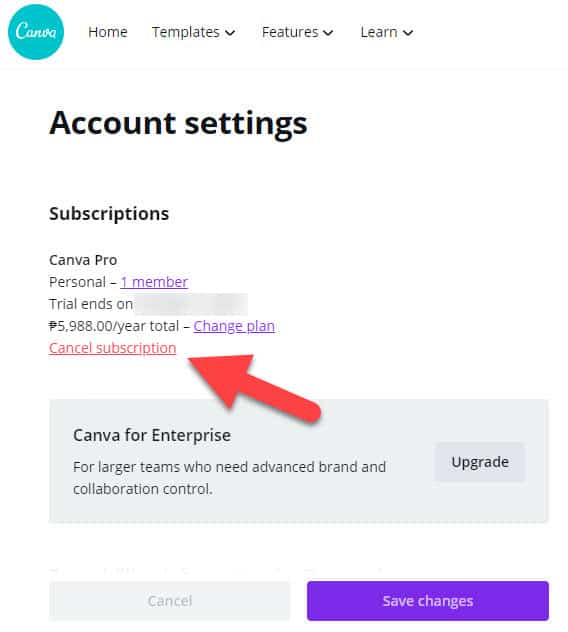
Step 1: Go to canva.com and sign in to the account that holds the subscription. Double-check you are logged into the right account if you have multiple Canva logins.
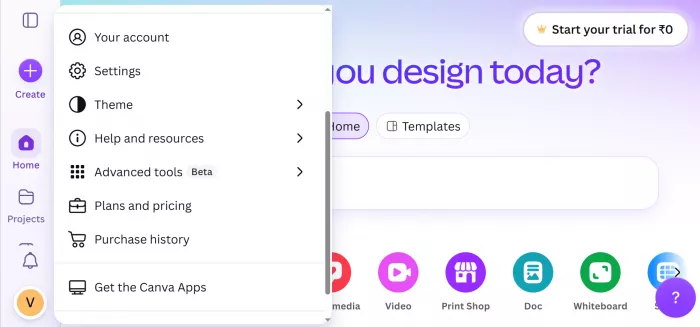
Step 2: Click your profile icon in the top-right corner of the dashboard. From the dropdown, select Account Settings.
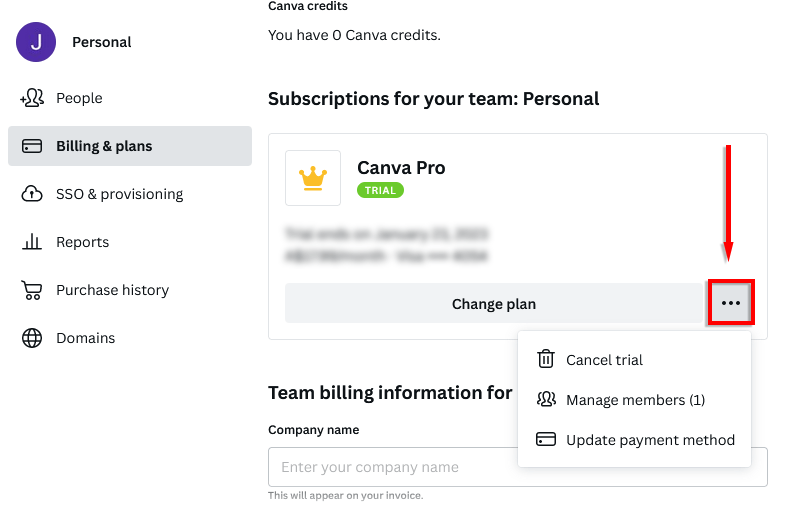
Step 3: In the left sidebar, click Billing & Plans. This page shows your current plan, billing cycle, payment method, and renewal date.
Step 4: Click the three-dot menu (...) next to your active plan. Select Cancel Subscription (or Request Cancellation for Teams plans).
Step 5: Review the retention offers. Canva will show retention screens asking why you are leaving and possibly offering a discount. You can skip through these if you have already decided.
Step 6: Click "Yes, cancel subscription" on the final confirmation screen. You will receive a confirmation email. Save it as proof.
Cancel on iPhone / iPad (Apple App Store Billing)
Step 1: Open the Settings app on your iPhone or iPad. Do not open the Canva app, as you cannot cancel from there when Apple handles billing.
Step 2: Tap your name / Apple ID banner at the very top of the Settings screen.
Step 3: Tap Subscriptions. If you do not see this option, look under Media & Purchases on older iOS versions.
Step 4: Find Canva in your active subscriptions list and tap on it.
Step 5: Tap Cancel Subscription and confirm. If you only see a 'Renew' option, the subscription is already canceled.
Cancel on Android (Google Play Store Billing)
Step 1: Open the Google Play Store app. Do not go to Canva app settings, as that will not work for Google Play billing.
Step 2: Tap your profile picture in the top-right corner of the Play Store.
Step 3: Select Payments & subscriptions, then tap Subscriptions.
Step 4: Find Canva in the list of active subscriptions and tap on it.
Step 5: Tap Cancel Subscription and follow the confirmation prompts. Google will send you a confirmation email.
🚨 Deleting the app does not cancel your subscription.
Whether you are on iOS or Android, removing the Canva app from your phone will not stop charges. You must cancel through your Apple or Google account settings.
What Happens After You Cancel
Canceling is not the same as losing everything. Here is a clear breakdown of what you keep versus what you lose once your billing period ends.
| WHAT YOU KEEP | WHAT YOU LOSE |
● All your existing designs and projects ● Access to Canva Free features ● Your Canva account and login ● 250,000+ free templates ● 5 GB of cloud storage ● Access to Affinity apps ● Ability to re-subscribe anytime | ● Premium templates and stock content ● Brand Kit access ● Background Remover tool ● Magic Resize for multi-platform sizing ● 1 TB cloud storage (drops to 5 GB) ● Premium AI features and higher AI credits ● Premium elements show watermarks |
💾 Pro tip:
Before your billing period ends, download all your important designs that use premium elements (stock photos, Pro fonts, premium graphics). Downloaded files keep their premium content. But if you try to re-download after your plan expires, they will show watermarks.
Can You Get a Refund?
Canva's official refund policy is straightforward but somewhat strict. Subscriptions are generally not refundable. However, Canva states that it reviews every refund request individually, and some users have reported success. Here is what you need to know.
| Scenario | Refund Likelihood | What to Do |
| Within 30-day free trial | No charge applies | Cancel before trial ends. Your card is never charged. |
| Within 14 days of a charge | Possible | Contact Canva support directly and explain the situation. |
| Annual plan within 30 days | Possible | Request through Canva support. Some users report full refunds. |
| Monthly plan (mid-cycle) | Unlikely | Cancel to prevent next charge. Access continues through the period. |
| Billed through Apple/Google | Varies | Request refund through Apple Support or Google Play, not Canva. |
If Canva refuses your refund request and you believe you were charged incorrectly, you have a few options. You can file a dispute with your bank or credit card company. You can also submit a complaint through the Better Business Bureau or your local consumer protection agency. Make sure to save your cancellation confirmation email as documentation.
Before You Cancel: A Quick Checklist
Take two minutes to run through this checklist so nothing falls through the cracks. A little prep now saves a lot of frustration later.
☐ Download important designs that use premium elements (stock images, Pro fonts, premium icons) while you still have access.
☐ Note your billing renewal date from the Billing & Plans page. Cancel at least 3 to 5 days before to be safe.
☐ Check which platform handles your billing (Canva direct, Apple App Store, or Google Play). Cancel through the right one.
☐ Export your Brand Kit assets (logos, brand colors, font files) if you uploaded them. These will become inaccessible on the free plan.
☐ Save your cancellation confirmation email once you complete the process. This is your proof if unexpected charges appear.
☐ If you are a Teams admin, let your team members know before canceling. Team members lose access to premium features once the billing period ends.
Special Notes for Canva Teams / Business Admins
If you are on a Canva Teams or Business plan, only the team admin can cancel the subscription. Regular team members will not see a cancel option in their own settings.
| Detail | Canva Teams | Canva Business |
| Who can cancel? | Team admin only | Team admin only |
| Re-subscribe later? | No. Canceling is permanent. | Yes, you can re-subscribe. |
| What happens to designs? | Retained on Canva Free | Retained on Canva Free |
| Team members' access | Reverts to free at period end | Reverts to free at period end |
| Brand Kit content | Retained but inaccessible | Retained but inaccessible |
⚠️ Important:
Canva has stated that canceling Teams is permanent. You will not be able to re-subscribe to the Teams plan once you cancel. If you think you might want a team plan in the future, consider switching to Canva Business instead, which does allow re-subscription.
How Much Will You Save?
Here is a quick look at how much you save annually by canceling each type of Canva plan. These numbers assume you are paying the standard rate without promotional discounts.
| Your Current Plan | Monthly Savings | Annual Savings |
| Canva Pro (Monthly) | $15 | $180/year |
| Canva Pro (Annual) | ~$10 | $120/year |
| Canva Business (1 user, Monthly) | $20 | $240/year |
| Canva Business (5 users, Annual) | ~$83 | $1,000/year |
Troubleshooting Common Problems
Based on user reports across Trustpilot and various support forums, here are the most common issues people run into and how to fix them.
I cannot find the cancel button anywhere
Canva periodically moves the cancellation option. As of mid-2026, it is under Account Settings, then Billing & Plans. If you still cannot find it, try using the search bar in Canva's help center for "cancel subscription." Also confirm you are logged into the correct account, especially if you have multiple Canva logins.
I canceled but I was still charged
This is the number one complaint on Trustpilot. The most likely cause is that you did not complete all the confirmation screens. Canva uses multiple steps with offers and retention prompts that can make it feel like you are done when you are not. Check your email for a cancellation confirmation. If you do not have one, the cancellation may not have gone through.
The chatbot keeps going in circles
Canva's live chat is often AI-powered and can redirect you in loops. If the chatbot is not resolving your issue, type "speak to a human" or "transfer to agent" to request a real support representative. You can also try emailing Canva support through their help center contact form.
I am a team member, not the admin
Only the team admin can cancel a Canva Teams or Business plan. You can leave the team from your own account settings, but that will not cancel the plan or stop charges for the admin. Contact your team admin to handle the cancellation.
My bank keeps getting charged even after canceling
Some banks may keep recurring subscription charges active even if the physical card has been canceled or has expired. If charges continue after confirmed cancellation, contact both Canva support and your bank. Provide proof of cancellation and request a chargeback if needed.
One Last Thing Before You Go
Canceling a subscription always feels like a small victory for your wallet, and it should. Whether you are cutting costs, switching to a different design tool, or simply realizing that the free plan covers everything you need, you have made a decision that works for you. That is what matters.
Remember, your Canva account stays active after canceling. All your designs remain right where you left them. If you ever want to come back to a paid plan, upgrading is just a few clicks away (though note the exception with Canva Teams, which cannot be re-subscribed once canceled).
If you ran into any trouble with unexpected charges or a cancellation that did not go through, do not hesitate to reach out to Canva's support team directly. And if the chatbot is not helping, insist on a human agent. You deserve a straightforward resolution, and your money matters.
Take care of yourself and your budget. You have got this.
Comments