| Detail | Current information |
|---|---|
| University | Galgotias University |
| Platform | iCloudEMS ERP |
| Student ERP login | gu.icloudems.com |
| Username | Student Admission Number |
| Main uses | Attendance, timetable, registration, fees, feedback, admit cards, marks, grade cards, seating plans and grievances |
| Separate LMS | lms.galgotiasuniversity.org |
| Mobile access | iCloudEMSV2 through Google Play and Apple App Store |
| IT support | [email protected] |
| IT helpdesk hours | Monday to Saturday, 9 AM to 5 PM |
Galgotias University's 2026–27 Student Handbook continues to list gu.icloudems.com for ERP access. Some newer university prospectus material also references gu.iclouds.com, so students encountering either address in official Galgotias material should not assume one is automatically fraudulent. The safest route is the Student Login link on the Galgotias University website or the URL supplied in current university communication.
If you have just joined Galgotias University, or you are about to, one of the first names you will keep running into is iCloud GU. It turns up in welcome emails, in advice from seniors, and in the instructions for almost everything, from checking your attendance to paying your fees. And if you have ever typed those two words into a search bar, there is a fair chance you came away more confused than before, because the very same name also belongs to a completely unrelated product made by Apple.

This guide sorts all of that out. It explains what iCloud GU really is, how to sign in, what to do when you forget your password, and what the portal can actually do for students and faculty once you are inside.
What iCloud GU actually is
iCloud GU, also written as GU iCloud, is the official online portal of Galgotias University. Its full name is Galgotias University iCloudEMS, and it is a cloud-based education management system. In plain terms, it is the single website where the whole of your academic life lives in one place: your course materials, your attendance, your timetable, your assignments, your exam schedule, your results, and your fees.
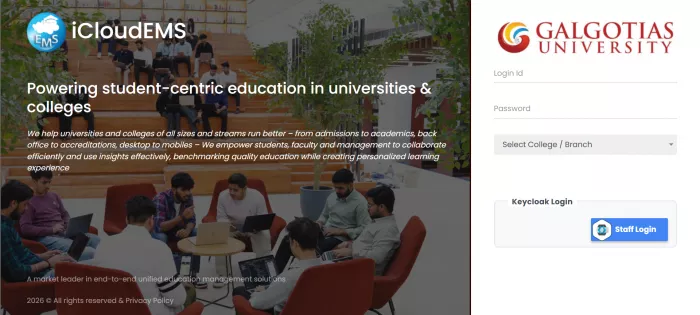
The platform itself is built on a system called iCloudEMS, developed by ESDS Software Solution, an Indian company that supplies education management software to universities and colleges across the country. Galgotias University adopted it to pull a lot of scattered processes into one place, so that instead of chasing different offices and different systems for different things, a student can handle most of it from a single dashboard on any device with an internet connection.
That is the simplest way to picture it. iCloud GU is the administrative and academic backbone of the university, opened up through a web browser. Instead of chasing separate offices for attendance, fees, exam dates, and results, you get one continuously updated record, so the attendance a teacher marks in the morning is the same one you see on your phone that afternoon.
iCloud GU is not Apple iCloud
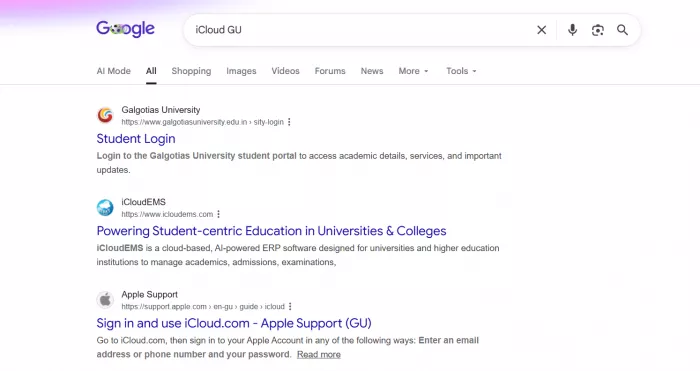
This is worth settling early, because it is the single most common point of confusion for anyone hearing the name for the first time. iCloud GU and Apple iCloud are two entirely different things that happen to share a word. There is no link between them, no partnership, and no shared login. The similarity is pure coincidence.
iCloud GU Galgotias University | Apple iCloud Apple Inc. |
|---|---|
| A university portal for managing academic records, attendance, assignments, exams, and fees. Used only by students, faculty, and staff of Galgotias University, with credentials the university gives you. | A general cloud service for backing up photos, files, and device settings across iPhone, iPad, and Mac. Open to anyone with an Apple account, and completely unrelated to any university. |
So if you came here looking to back up your phone photos, this is not the right place. But if you are a Galgotias student trying to check your marks or download an admit card, you are in exactly the right one. The rest of this guide is about the university portal.
How to log in to iCloud GU
The official login page is gu.icloudems.com. This is the only genuine address for the portal. If anyone sends you to a different web address claiming to be iCloud GU, treat it with suspicion and confirm with the university IT department first, because look-alike pages are a common way that login details get stolen.
Logging in needs credentials that the university itself issues to you. You do not create them yourself. They are usually handed over at the time of admission, either by the admissions office or sent to the email address you registered. Once you have them, the process is short.
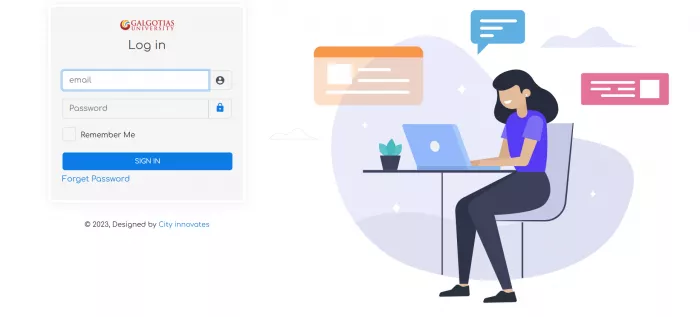
1. Open your web browser and go to gu.icloudems.com.
2. Enter your university-issued username or enrollment number in the username field.
3. Type your password in the password field.
4. Click the Login button.
5. Choose your role, either Student or Faculty, and click Proceed.
After that you land on your personal dashboard, which shows the features, modules, and notifications that apply to you based on the role you picked. The portal works on laptops, desktops, tablets, and phones, so you are not tied to a campus computer. There is also a dedicated mobile app, iCloudEMSV2, available on the Apple App Store for students who prefer using their phone.
GOOD HABIT Bookmark gu.icloudems.com yourself rather than reaching the portal through a random search result. It saves time and keeps you away from imitation pages. |
Getting your account in the first place
New students sometimes go looking for a sign-up button on iCloud GU and cannot find one. That is by design. You do not register for the portal yourself; the university sets up your account as part of admission.
When you enroll, an administrator generates your login details, usually a user ID and a password, and sends them to your registered email. If you have been admitted but nothing has arrived, do not try to create an account. Contact the admissions office or IT department and ask them to issue or resend your details.
FIRST LOGIN Once you are in, take a few minutes to complete your profile, upload your photo, and explore the dashboard, so you know where everything lives before you need it in a hurry. |
Resetting a forgotten password
Forgetting a password is normal, especially for a portal you might only open a few times a month. The reset process on iCloud GU is straightforward and does not require a trip to any office.
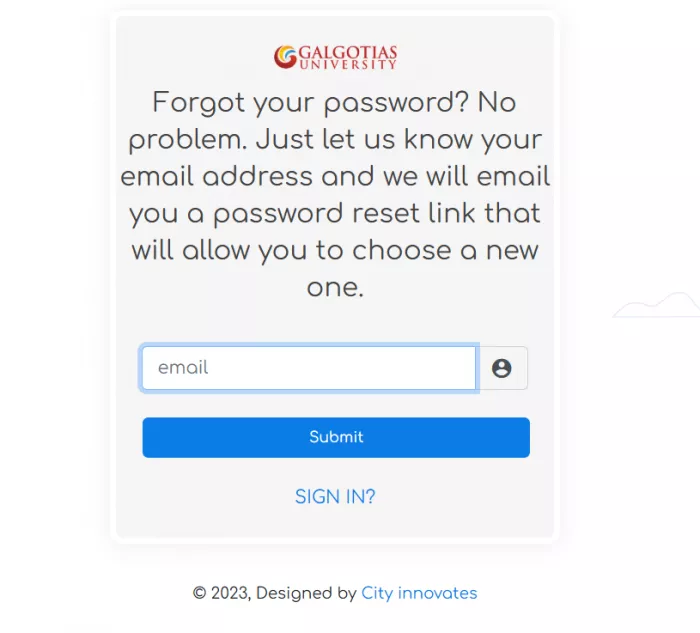
1. Go to the login page at gu.icloudems.com.
2. Click the Forgot Password link.
3. Enter your username or user ID.
4. Complete the captcha to prove you are human.
5. Select your college or branch from the dropdown menu.
6. Click Submit.
A reset link then arrives in your registered email. If it does not show up within a few minutes, check your spam or junk folder before assuming something has gone wrong. If the email never comes, that usually points to a mismatch in your registered address, and the academic office or IT team can help you sort it out.
What students can do on iCloud GU
For students, the portal is meant to cover the full sweep of academic and administrative life. Think of the dashboard as a set of modules, each handling one part of your studies. Here is what sits inside it.
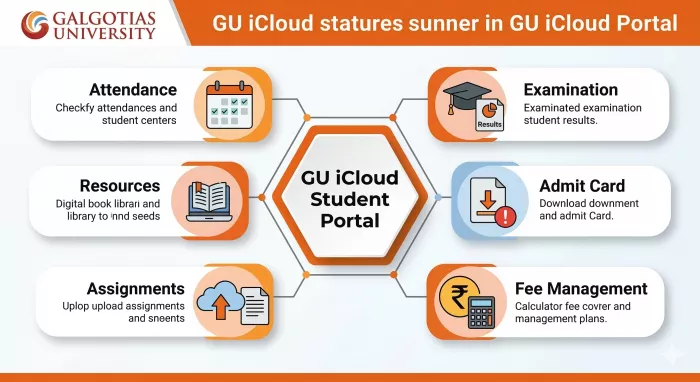
| Module | What it does |
|---|---|
| Academic records | Your attendance, internal marks, grades, results, and transcripts, kept up to date in real time by faculty and the academic office. |
| Timetable and schedules | Your weekly class timetable, room numbers, and course codes, along with any changes the university posts. |
| Admit cards | Download exam admit cards directly. You usually need your feedback form submitted and your fees cleared before they unlock. |
| Fee management | View your fee structure, check pending dues, see your payment history, and download receipts, with some payment options built in. |
| Assignments | Open work set by faculty, submit it electronically, and get feedback without walking over to the department. |
| Learning resources | A library of e-books, lecture notes, and course materials you can reach from anywhere, no campus visit required. |
| Examinations | Exam schedules, seating plans, hall tickets, and results once they are declared, all in one section. |
| Grievances | Raise an academic or administrative issue through a grievance form and track it through the portal. |
| Career and placement | Career guidance, placement announcements, and alumni network information, gathered into your dashboard. |
| Communication | An in-built messaging system for talking to faculty and receiving university announcements and circulars. |
Put together, that is most of what a student would otherwise have to handle across several desks and noticeboards, available from a single screen. The two features people lean on most are attendance and results, simply because they want to know where they stand, and fees, because deadlines have a way of creeping up.
iCloud GU and LMS Are Different
One useful distinction missing from many explanations of GU iCloud is the difference between the ERP and the university's LMS. Galgotias University lists them separately in its current Student Handbook.
The iCloudEMS ERP is primarily concerned with the student's academic and administrative record. The LMS, available through lms.galgotiasuniversity.org, is designed around the learning process itself.
| Task | iCloud GU ERP | Galgotias LMS |
|---|---|---|
| Check attendance | ✓ | |
| View timetable | ✓ | |
| Course registration | ✓ | |
| Pay fees/download receipts | ✓ | |
| Download admit card | ✓ | |
| View grade cards | ✓ | |
| Examination seating plan | ✓ | |
| Raise ERP grievance | ✓ | |
| Take quizzes | ✓ | |
| Work on assignments | ✓ | |
| Access lecture notes/PPTs/PDFs | ✓ | |
| Online examinations | ✓ | |
| Online coding activities | ✓ |
There can be some overlap in academic content, but the distinction is still useful. If a student is trying to check a grade card or fee receipt, iCloud GU is normally the relevant place. If the task involves a quiz, assignment or online learning material, the LMS is more likely to be where it appears.
What faculty can do
The portal is not only a student tool. Faculty members have their own side of iCloud GU, built for teaching and assessment rather than for tracking one’s own progress.
| Module | What it does |
|---|---|
| Course management | Create and publish course materials, lecture content, assignments, and question papers, and keep syllabi current for each batch. |
| Attendance marking | Record and update attendance digitally, which students then see in real time on their own dashboards. |
| Assessment and grading | Evaluate submitted work, run online quizzes and tests, and publish marks straight to student profiles. |
| Performance monitoring | Track how individual students are doing, spot attendance shortfalls, and offer targeted support. |
| Feedback management | Receive and review student feedback on courses and teaching, which also feeds into accreditation. |
Behind both of these is a layer for administrators, who use the same system for tasks like managing admissions, collecting fees, handling payroll, and generating reports. Most students never see that side, but it is the reason the records on your dashboard stay consistent and current.
How Attendance Connects to Exams
Attendance is not simply another statistic on the iCloud dashboard. Galgotias University's published attendance criteria require students to maintain at least 75% attendance in each course individually to appear in the Semester End Examination or End-Term Examination.
This means an overall semester average does not necessarily solve a shortage in one particular course. Students therefore need to look at attendance course by course rather than checking only a combined percentage.
The university also states that examination hall tickets are issued through the ERP system. Its student rules provide for the list of students debarred from examinations because of attendance to be displayed through the ERP.
Students using iCloud GU for attendance should therefore pay attention to three things:
- Check individual subjects rather than relying only on an overall attendance number, because the 75% requirement applies course by course.
- Review attendance before examination deadlines rather than waiting until admit cards are due, since a shortage can affect examination eligibility.
- If an attendance entry appears incorrect, raise it through the appropriate university or school channel early enough for the record to be checked.
There are provisions for exceptional circumstances under university rules, but these involve university approval and supporting documentation. A student should not assume that an attendance shortage will automatically be waived.
Is iCloud GU safe to use
For a system that holds your attendance, marks, and fee details, the natural question is whether the data is protected. The short answer is yes, and it comes down to two things working together.
| How it is protected | Your part |
|---|---|
| Encrypted storage and secure sign-in, plus role-based access, so a student sees only their own records and faculty only the courses and students assigned to them. | Keep your login details private, never share your password, and log out after each session, especially on a shared lab or library computer. |
Common login problems and how to fix them
Most trouble with iCloud GU happens at the front door, and the causes are usually simple. The single most frequent slip is entering the wrong format in the username field. Some students type their email address when the portal wants their enrollment number, or the other way round, so the first thing to check is that you are using the exact format your admission letter specified.
If the page will not load at all, it is often a network issue on your end rather than the portal being down, so try a different connection or browser before worrying. If you are locked out after several wrong attempts, give it a little time and then use the password reset described earlier. And if you have genuinely checked everything and still cannot get in, that is the moment to contact the IT department or the academic office, since they can see account details that you cannot.
IF YOU STAY STUCK When you reach out for help, mention your enrollment number, the exact error message on screen, and whether you have already tried a reset. It saves a round of back and forth and gets you back in faster. |
Getting the most out of iCloud GU
A few small habits turn the portal from something you open only in a panic into something that quietly works in your favour.
1. Check attendance early. Most programmes set a minimum, so watch the number as it builds and catch a shortfall while you can still fix it.
2. Clear fees and feedback before exams. Admit cards usually unlock only once your dues are paid and your feedback form is submitted, so settle both well ahead.
3. Keep your email current. Password resets, results, and notices all land in your registered inbox, so make sure it is one you actually use.
4. Use the app, and log out on shared devices. The iCloudEMSV2 app is handy for quick checks, and signing out in labs or libraries keeps your account safe.
Once you get used to it, iCloud GU stops feeling like another login to remember and becomes what it is meant to be, a single, reliable place to keep your studies organised. Save the address, keep your credentials safe, and check in often enough that attendance, fees, and results never take you by surprise. Do that, and the portal quietly does its job in the background, which is exactly the point.
Comments

Kartik Sharma
1 month agoI commute daily and check the portal between classes on my phone. Deleted the app after constant crashes, use Chrome now. Works well enough for checking if I can skip a class or if attendance is above required percentage. Fee payment saved me last semester, paid at 11 PM from my hostel. Gateway hiccuped once but resolved. The "real-time" attendance claim is misleading, updates take days. But once you know that, you stop obsessing. Functional for my chaotic schedule. Could be faster, gets the job done.
Login To Reply ↪
Daniel M
3 weeks agoFirst year, thought the app was broken. Senior told me to use Chrome instead. Game changer. Now I just check attendance and download notes. Ugly but functional. Would rather have this than stand in lines like my cousin at another college.
Login To Reply ↪