Table of Contents
- Two ways to do this
- Method 1: the free route with YouTube auto-dubbing
- Where it falls short
- Method 2: a custom dub in your own voice
- Creating the dub (HeyGen example)
- Uploading it to YouTube as a language track
- Which languages to dub first
- Mistakes that quietly cost you views
- The honest trade-offs
- What the big channels actually use
- My verdict after living with it
I dubbed one of my own tutorials into Spanish, Hindi and German on a Tuesday afternoon, mostly to find out how rough it would sound. It was not rough. The Spanish track resembled my voice closely enough that a friend in Madrid asked when I had learned the language. The whole job took roughly forty minutes, and most of that was me second-guessing the translation rather than fighting any software.
That afternoon is the reason this guide exists. AI dubbing on YouTube moved from a novelty to something worth building into your upload routine somewhere in mid-2025, and by 2026 it lives inside YouTube Studio for almost everyone. Below are both ways to do it, the effortless free one and the slower one where you stay in control of your own voice. I have run both on real videos, so wherever a method annoyed me, I say so plainly.
| The short version. Turn on free auto-dubbing so YouTube translates your videos for you. When a specific video starts earning views in another language, replace that language with a custom dub made in a tool like HeyGen or ElevenLabs for better voice, editable wording, and search visibility. |
Two ways to do this
Pick based on how much control you want and how much you are willing to spend. Most channels end up using both.
FREE, BUILT IN YouTube auto-dubbing YouTube generates translated audio tracks for you automatically after upload. You flip one setting and forget about it. • No cost and no editing work • Audio only, so on-screen lips stay in the original language • Labeled auto-dubbed for viewers • You cannot edit the translation line by line | PAID, FULL CONTROL Custom AI dub, then upload You create the dubbed track yourself in a third-party tool, then upload it as a multi-language audio track. • Uses a clone of your actual voice • Optional lip-sync so the mouth matches the words • You review and fix the wording before it ships • Lets you add a translated title and description |
Before you start
A few things need to be true for either method to work. Check these once and you rarely think about them again.
• You are working in YouTube Studio on a desktop browser. Dub management does not exist in the mobile app.
• Your account is verified and has Advanced features enabled, under Settings, then Channel.
• The video has clear spoken audio. Music-only or silent clips cannot be dubbed.
• The video runs under 120 minutes and is not blocked by a copyright claim.
• For custom dubs, you have an audio-only file that matches the length of the video.
Method 1: the free route with YouTube auto-dubbing
This is the fastest way to reach a global audience, and it is genuinely set-and-forget.
Auto-dubbing is YouTube's own AI feature. It detects the language of your video, generates a translated audio track in other languages, and attaches each one to the same upload as a separate track viewers can switch between. As of early 2026 it reaches 27 languages, and by mid-2026 it dubbed into English from 29 source languages and out of English into 20. YouTube also rolled out Expressive Speech, which mirrors your pitch and energy instead of reading flat, in eight languages including English, Spanish, Hindi and Portuguese.
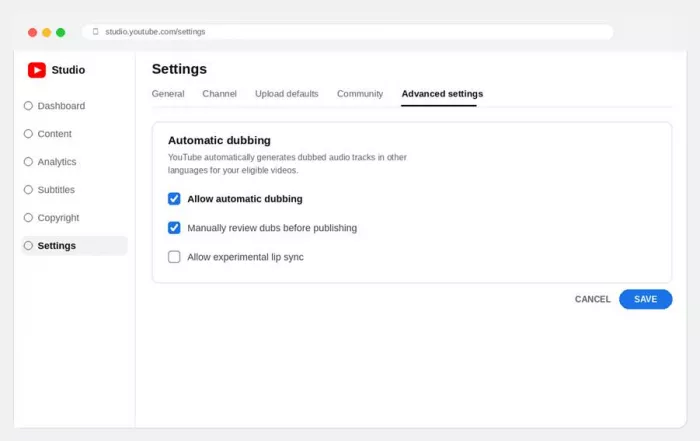
YouTube Studio, Settings, Channel, Advanced settings. One checkbox turns dubbing on for the whole channel.
Turning it on
1 Open Settings in YouTube Studio
Sign in on a computer, then click Settings in the bottom-left menu.
2 Go to Channel, then Advanced settings
Inside the Settings window, choose Channel and open the Advanced settings tab.
3 Check Allow automatic dubbing
If you do not see the box yet, look for an Enable option under early access. Rollout is gradual, so it may appear after a short delay.
4 Decide whether to review first
Check Manually review dubs before publishing if you want to approve each track. Leave it off and dubs go live on their own.
5 Save, then upload as normal
Click Save. New and existing videos get dubbed automatically, and you manage every track from the Content page.
One number tells you this is not a fringe feature: in December, more than six million people a day watched at least ten minutes of AI-dubbed content on YouTube. YouTube also states that turning it on does not hurt your original video's discovery and can improve it elsewhere, so there is little reason not to switch it on tonight.
Where it falls short
A video can be skipped by auto-dubbing for reasons that are easy to miss. Here is what stops it.
| Blocker | What it means |
|---|---|
| Over 120 minutes | The video is too long for the dubbing pipeline. |
| Little or no speech | Music-only or near-silent clips have nothing to translate. |
| Unsupported language | The original audio is in a language not yet covered. |
| Language not detected | YouTube could not identify the source language on its own. |
| Speech too fast | Rapid delivery would produce a sped-up, hard-to-follow dub. |
| Copyright claim | Claimed content in the video prevents a new track. |
| The real limit. Auto-dubs cannot be edited a line at a time. If the translation gets a product name or a joke wrong, your only options are to unpublish that track or replace it with your own. That is exactly where the second method earns its keep. |
Method 2: a custom dub in your own voice
More effort, noticeably better result. This is what you do for videos that matter.
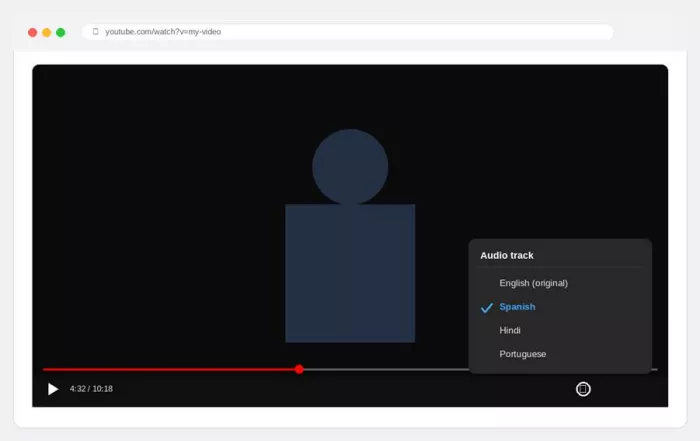
The custom route is two jobs stitched together. First you create the dubbed audio in a dedicated tool that clones your voice and lets you read the translation before it commits. Then you upload that finished track to YouTube as a multi-language audio track, which viewers select from the player just like a caption language. Custom tracks also let you attach a translated title and description, and that metadata is the part that actually helps people find you when they search in their own language.
Picking a dubbing tool
I kept coming back to four. They split cleanly by what you are dubbing.
| Tool | Best for | Lip-sync | Languages | Entry price | The catch |
|---|---|---|---|---|---|
| HeyGen | On-camera talking-head video | Yes | 175+ | Free tier, then about $24 a month | Free plan caps you at three short watermarked videos |
| ElevenLabs | Voiceover and podcast-style audio | No | 90+ | Free tier, then about $5 to $22 a month | Outputs audio only, so you rejoin it to the video yourself |
| Rask AI | High volume across many languages | Paid tiers | 130+ | From about $19 a month | Lip-sync sits on a much pricier plan near $150 a month |
| Dubverse | Budget dubbing, strong on South Asian languages | Limited | 60+ | From about $18 a month | Credits burn faster than the sticker price suggests |
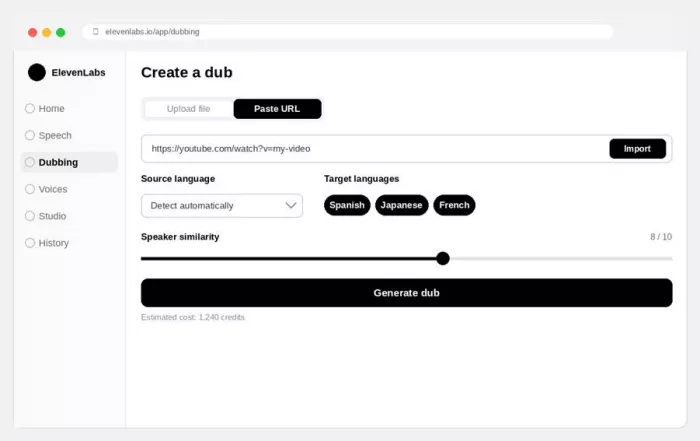
My own rule is simple. If my face is clearly in frame, I use HeyGen and pay for the lip-sync, because a mouth moving to the wrong words is the one thing viewers notice instantly. If it is a voiceover video where I am barely on camera, ElevenLabs wins on pure voice quality and I skip lip-sync entirely. Whatever you choose, dub one short clip first and listen to your target language before committing to an annual plan, because the headline language count is always bigger than the count of languages that actually sound good.
Creating the dub (HeyGen example)
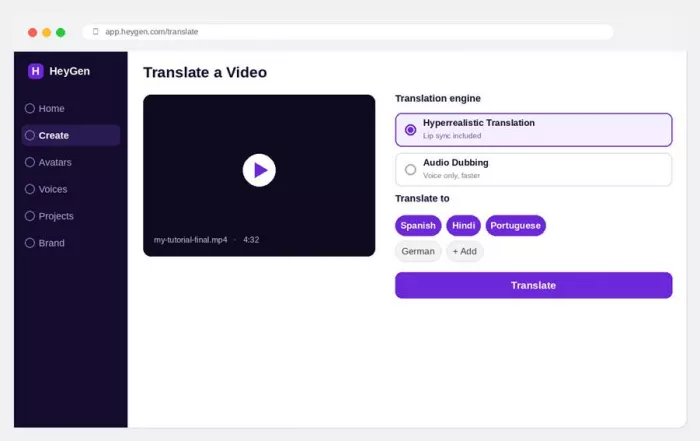
1 Start a translation
From the dashboard, click Create, then Translate a Video. Paste your YouTube link or upload the file directly.
2 Choose the engine
Pick Hyperrealistic Translation when a face is on screen, since it includes lip-sync. Pick Audio Dubbing when the speaker is small, offscreen, or when speed matters more.
3 Set your languages
Select the original language and up to five targets. Advanced mode adds a brand glossary so names and product terms stay consistent.
4 Read the transcript before you generate
This is the step people skip and regret. Fix mistranslated names, idioms and jargon here, while it is still cheap to change.
5 Generate and export
Run it, then download either the full translated video or the audio-only track. For a YouTube multi-language upload, you want the audio-only file.
Uploading it to YouTube as a language track
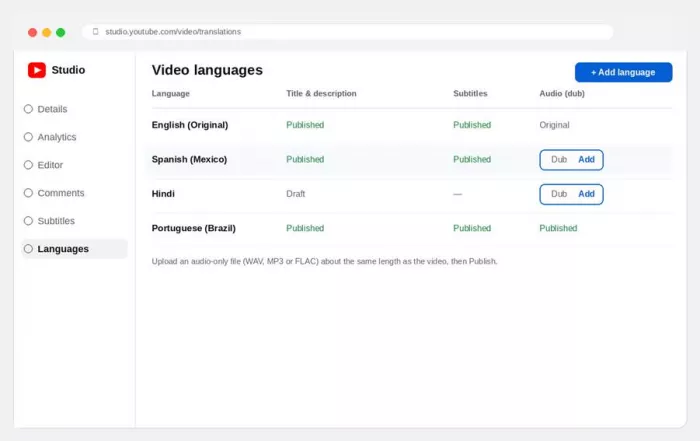
1 Open the Languages tab
In YouTube Studio, click Languages in the left menu, then click the video you want to localize.
2 Add the target language
Click Add language and choose your target, for example Spanish (Mexico). This creates a row with slots for title, description, subtitles and dub.
3 Delete any existing auto-dub first
If YouTube already generated an auto-dub in that language, remove it before uploading. You cannot stack your track on top of the automatic one.
4 Upload the audio file
Next to Dub, click Add, then Select file, and choose your audio-only file (WAV, MP3 or FLAC). It must run roughly the same length as the video, because you cannot trim it here.
5 Add translated metadata, then publish
Fill in the translated title and description in the same row, then click Publish. Use the language dropdown to preview, then repeat for each language, up to six per video.
| If the Languages upload is missing. Custom multi-language audio is still rolling out and cannot be requested for a specific channel. While you wait, keep auto-dubbing on for free coverage and prepare your custom audio files, so you can upload them the day the feature appears. |
Which languages to dub first
Do not dub into everything at once. Let your own numbers choose for you.
Open Analytics, then Audience, and look at your top geographies and the subtitle languages people already turn on. Those are viewers telling you where the demand is. Start with two or three languages, not ten. For most English channels, Spanish, Portuguese and Hindi return the most watch time for the least effort, but your data outranks that generalization every time.
A good first move is what creators call a landing pad: take your evergreen videos that still pull steady views months later, dub five of them, and release the tracks together. New viewers arriving in another language then find a small library waiting instead of one lonely clip.
Mistakes that quietly cost you views
Every one of these is something I either did or watched someone else do.
A dub of the wrong length YouTube will not let you trim an uploaded track. If it runs even a few seconds off, the audio drifts out of sync. Match the runtime first. | Leaving the auto-dub in place Uploading a custom track over an existing auto-dub in the same language silently fails. Delete the automatic one first. |
Skipping translated metadata Auto-dubs cannot carry a translated title or description, and that text is what surfaces you in foreign-language search. Custom tracks can. | Dubbing your weakest videos A bad first impression in a new language sends poor signals across the channel. Dub proven winners, not experiments. |
Trusting the translation blind Names, slang and technical terms are where machine translation still slips. Read the transcript before generating, every time. | Lip-sync on bad footage Lip-sync works on clear, front-facing shots. On shaky or side-profile video it looks worse than no lip-sync at all. |
The honest trade-offs
What works well + A genuinely free option that needs no editing at all + Your original audience stays intact, since viewers just switch tracks + Voice cloning is convincing in 2026 on clean, clear speech + It reaches viewers who would never have found your channel + A finished dub now takes minutes rather than a studio booking | Where it still frustrates - Auto-dubs give you no line-by-line control over wording - Quality dips in the less common languages, so test yours - Good lip-sync costs extra and needs cooperative footage - Custom track access arrives channel by channel, not all at once - Translation still stumbles on idioms, names and fast delivery |
What the big channels actually use
Before you pick a tool, it helps to see how creators doing this at scale approach it.
One pattern holds across almost every large channel: they host their dubs with YouTube's multi-language audio tracks, so every language lives on one video instead of a scatter of separate channels. Where they split is on who produces the voice, a machine or a human. Here is who uses what, based on what these creators and the tool makers have said in public.
| Creator | What they dub | Tool or approach | Worth knowing |
|---|---|---|---|
| MrBeast (Jimmy Donaldson) | Flagship videos in 30+ languages, all on one channel | Human voice actors through his own operation, later spun out as Creator Global | His team tested AI dubbing early, watched retention drop, and moved to humans to keep his energy |
| Adam Waheed | Comedy videos into Spanish, French, Italian and more | AI dubbing via Deeptune, cloning his own voice and delivery | Reports each video takes roughly 15 minutes to translate |
| Lex Fridman | Long interview episodes into Hindi, Russian, French and Ukrainian | AI dubbing with ElevenLabs, plus a human editor checking the output | His Hindi dub of the Narendra Modi interview spread widely across India |
| Read the pattern, not just the names. The largest creator on this list chose human dubbing for his biggest videos because early AI tests cost him watch time. That is not a verdict against AI. At the very top, where a fraction of a percent of retention is worth millions, human actors still edge ahead. For the rest of us, AI now closes most of that gap at a tiny fraction of the price. |
The split by format is the useful part. On-camera creators care about voice and personality, podcasters care about how natural a voice stays over long stretches, and that maps neatly onto the tool to reach for.
| If this is you | Reach for | Why it fits |
|---|---|---|
| On camera, talking to the lens | HeyGen | Lip-sync matters most when your mouth is visible in frame |
| Podcast or voiceover channel | ElevenLabs | Voice realism carries the whole episode, and lip-sync is irrelevant |
| Localizing a big library fast | Rask AI | Built for batch throughput across many languages at once |
| Just testing on a tight budget | Dubverse or free auto-dub | Lowest cost to learn whether a language actually pays off |
My verdict after living with it
If you do one thing tonight, switch on auto-dubbing and let YouTube translate your back catalogue while you sleep. It costs nothing, and I have watched it pull in viewers from countries I would struggle to place on a map. It is the closest thing to free growth the platform currently hands out.
The paid tools are where I spend real attention, and only on videos that have earned it. I keep HeyGen for anything with my face in the shot and ElevenLabs for voiceover pieces, and I stopped paying for lip-sync on clips where I am barely on camera. After weeks of running the same footage through all of them, my honest takeaway is that the audio is no longer the hard part. The tools clone a voice well enough that most viewers never question it.
The bottleneck now sits somewhere no model has fully solved: whether your writing survives the trip into another language. Read the transcript, fix the names and the jokes, and the rest genuinely does take care of itself. Start with one video and one language this week. That first message asking when you learned Spanish makes the whole thing click.
Comments